
How to print from SD card
Printing a sliced model from the Micro SD
In certain situations, when there is no internet connectivity, you might wish to print using the Micro SD card on the printer. Start by removing the Micro SD card from the printer, which is located on the right side of the touchscreen.
📌 Note: Please note that the X1C does not come with a MicroSD card out of the box
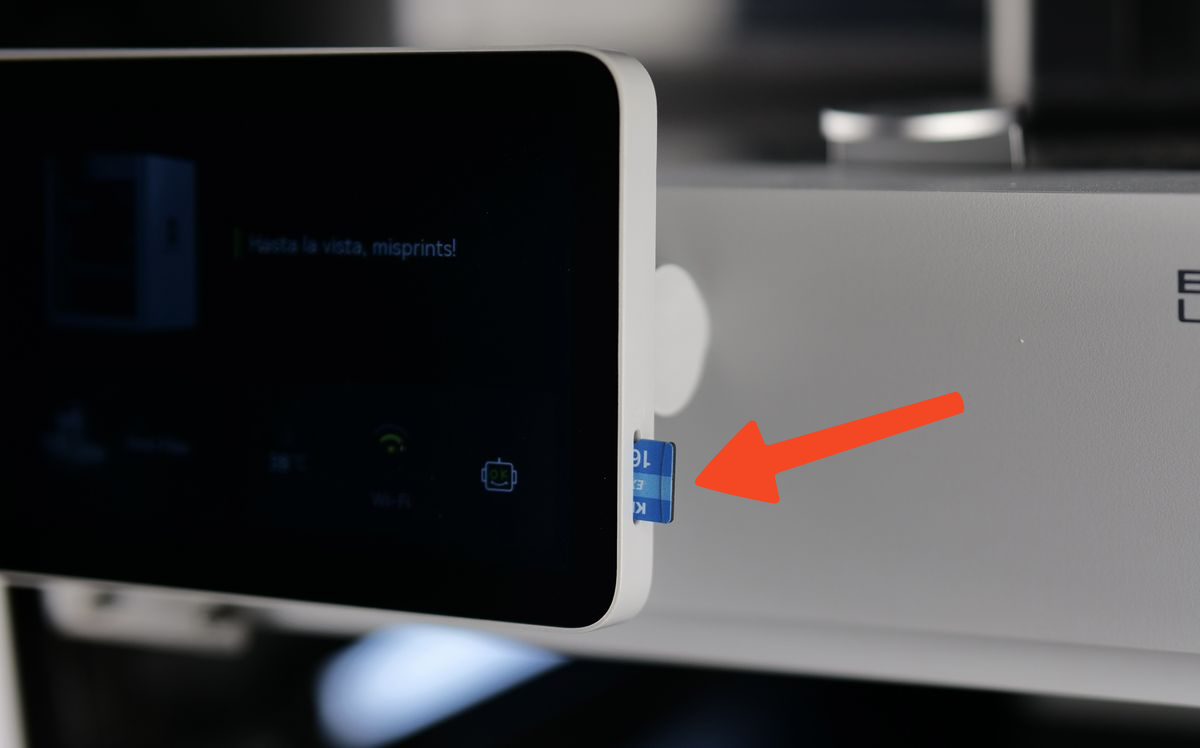
Simply press on the top of the Micro SD card to release it, and it will be ejected from the printer. Now the Micro SD card can be connected to the computer.
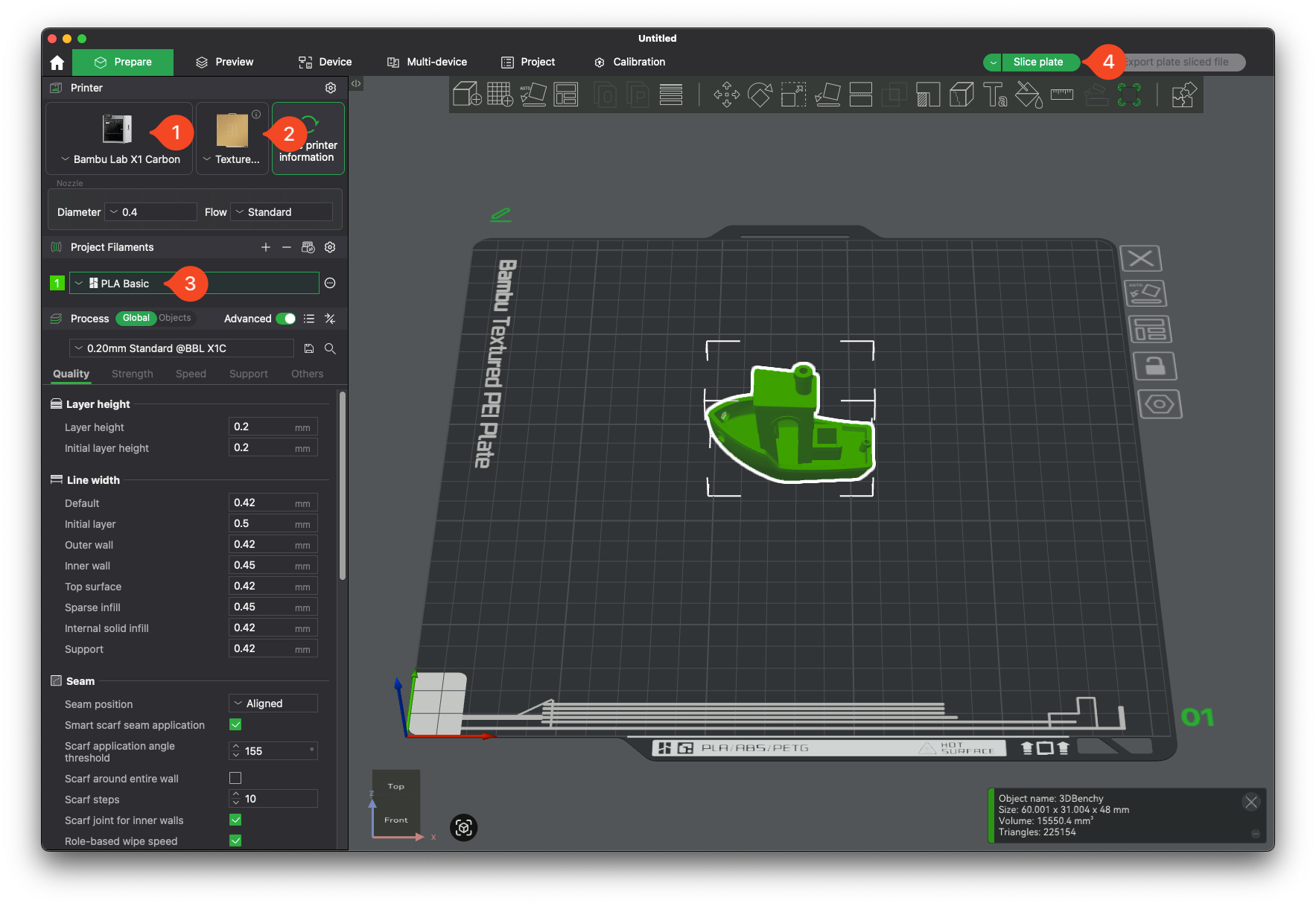
The next step is to slice the 3D Model using Bambu Studio. On your computer, open Bambu Studio and import the model you wish to print, then follow these steps:
- Select the correct Printer Type.
- Select the correct Plate Type.
- Select the type of filament you wish to print with.
- Click on Slice Plate.
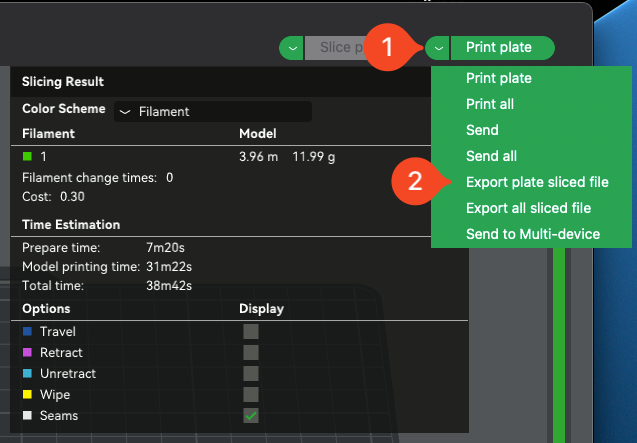
- Once the file has been sliced, the model preview will be shown.
- Select the small arrow next to Print Plate.
- Click on Export plate sliced file option.
Click again on the main Export plate sliced file option.
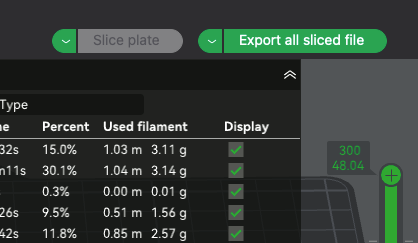
A prompt will show up allowing you to select where to save the file. When the Save prompt appears on your computer:
- Set a file name for your model.
- Select the location where you wish to save it. In this case, it is the Micro SD card from the printer.
- Click on Save.
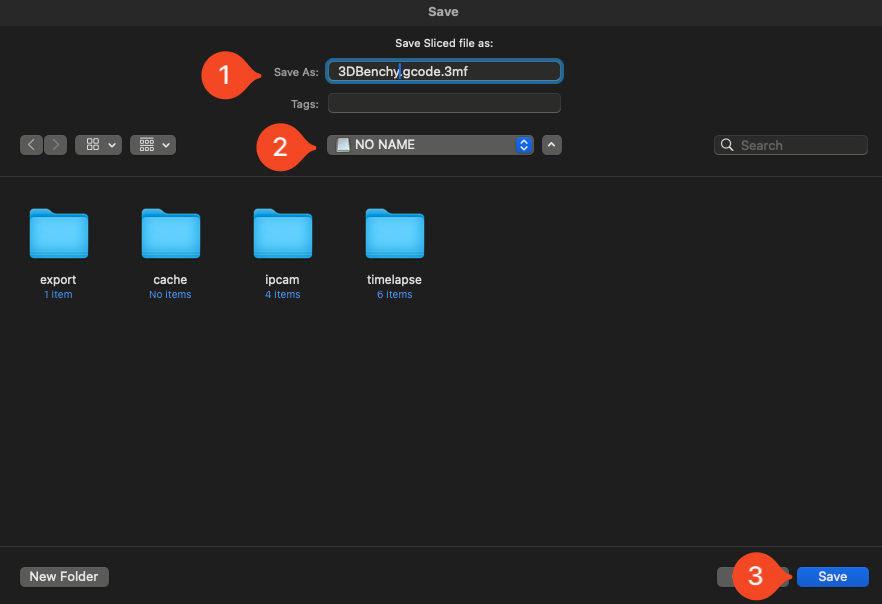
❗❗❗ Important: Do not save it in any of the folders seen on the Micro SD card. It should be on the root of the SD card.
- Next, remove the Micro SD card from your computer, and insert it into the printer Micro SD card slot.
- With the file sliced and copied on the Micro SD card of the printer, you can start printing.
- Select Print Files
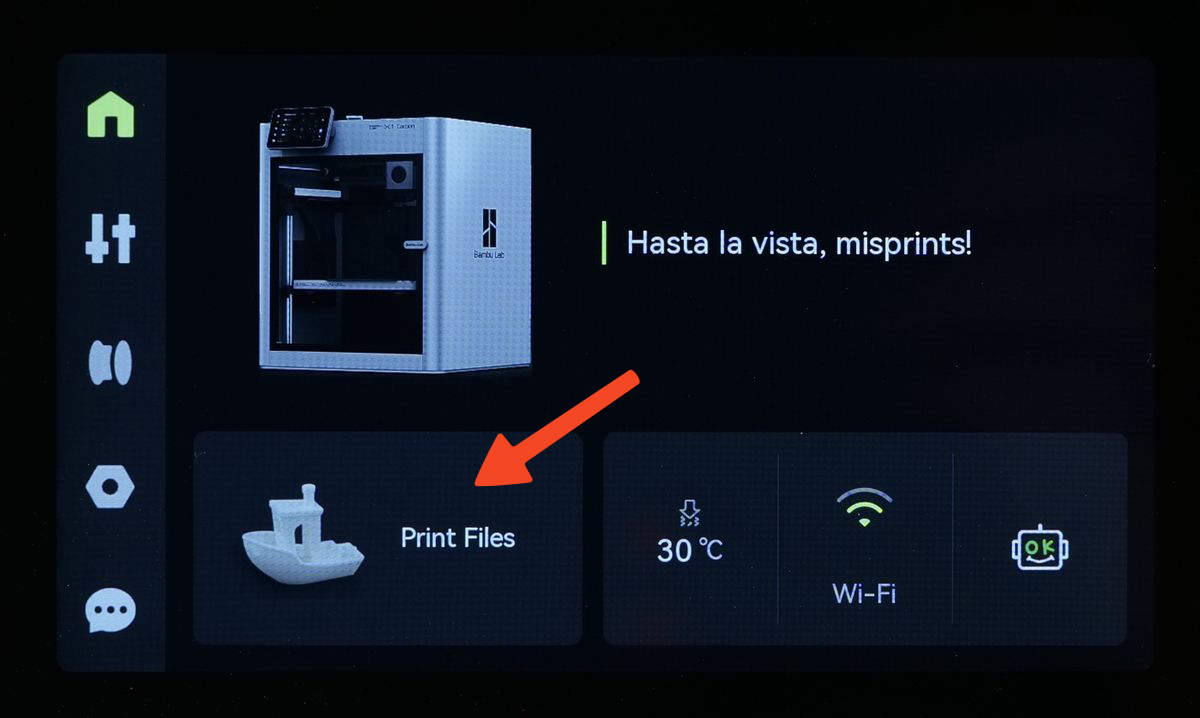
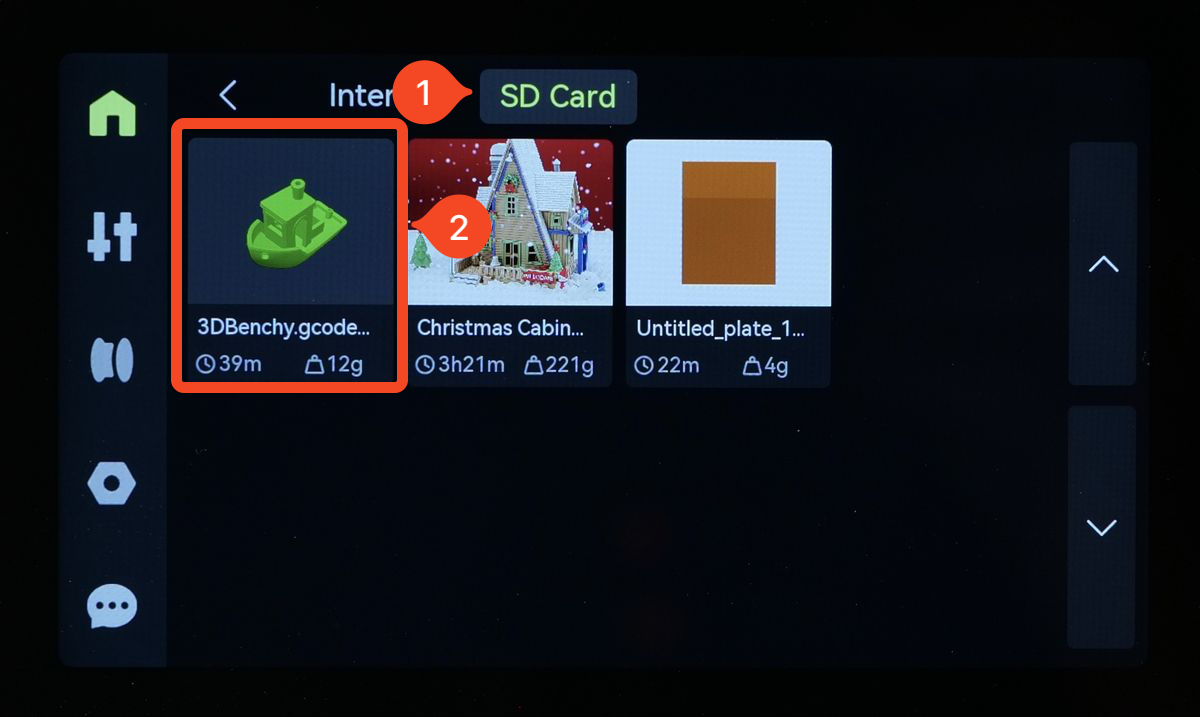
- In the next screen, select the Micro SD card, then tap on the previously saved model.
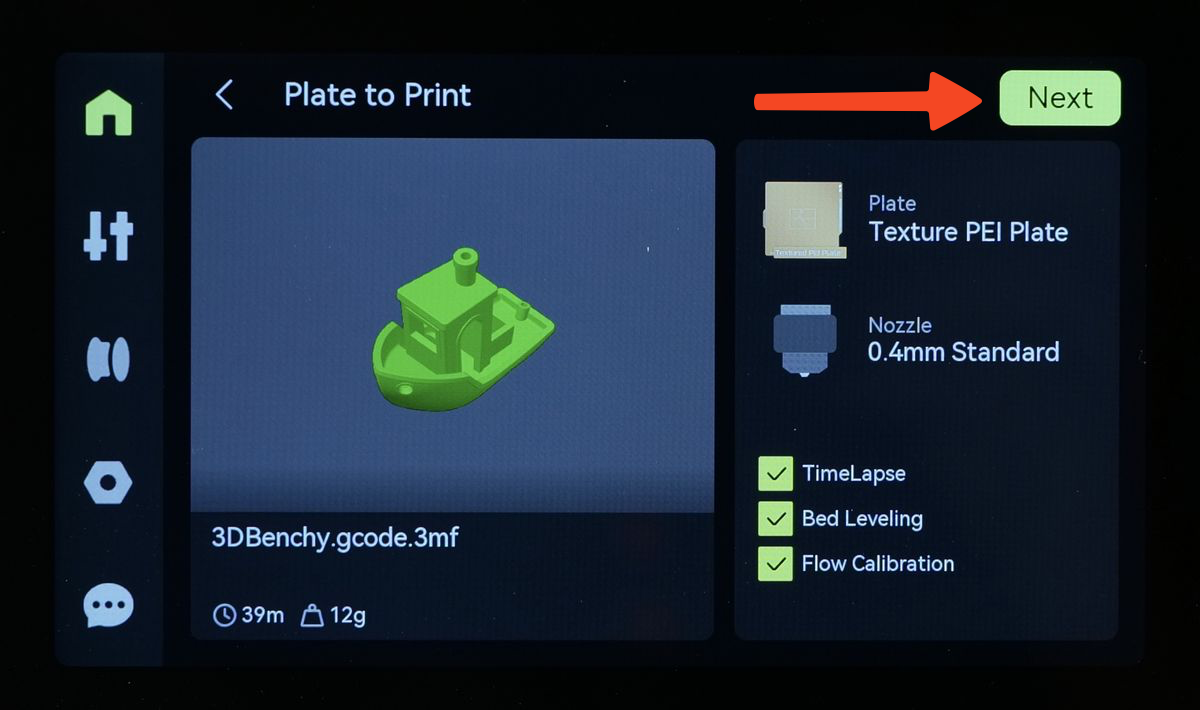
- On the next screen you will have options for enabling TimeLapse, Bed Leveling and Flow Calibration. We recommend keeping the default settings configured, and simply tap Next.
- An additional screen will show up allowing you to select the filament you wish to use. In this case, the filament is the Bambu Lab Green PLA Basic from the external spool. Simply tap on Print to begin the printing process.
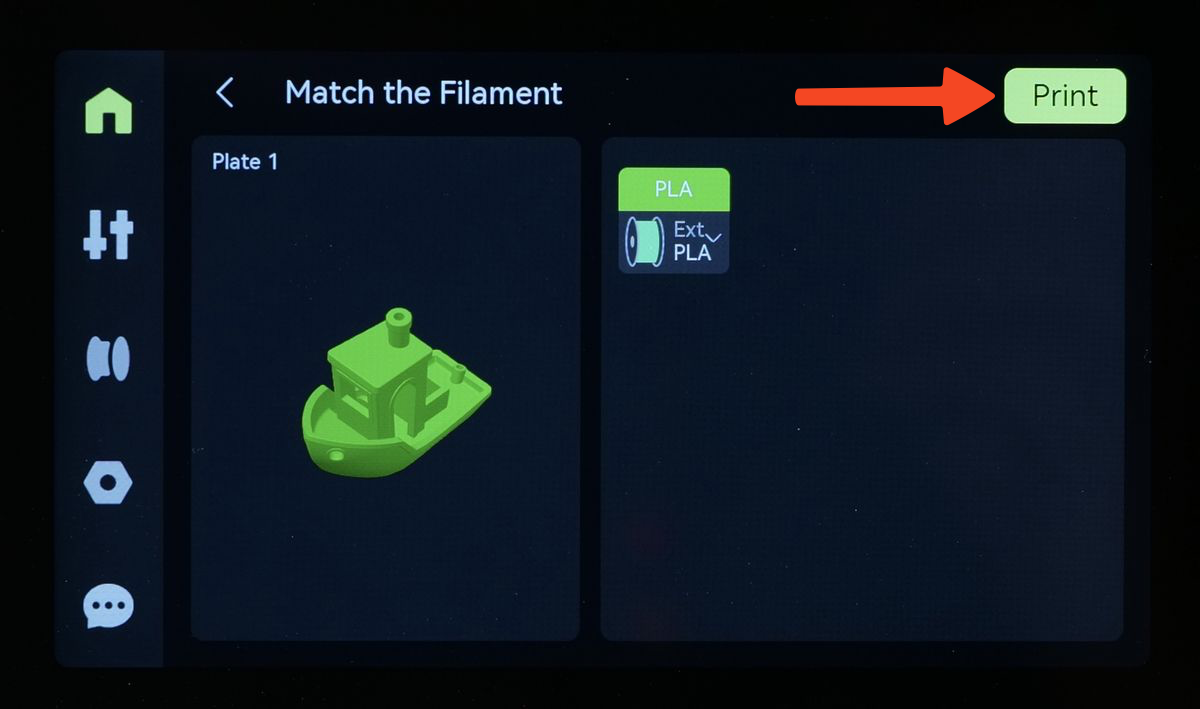
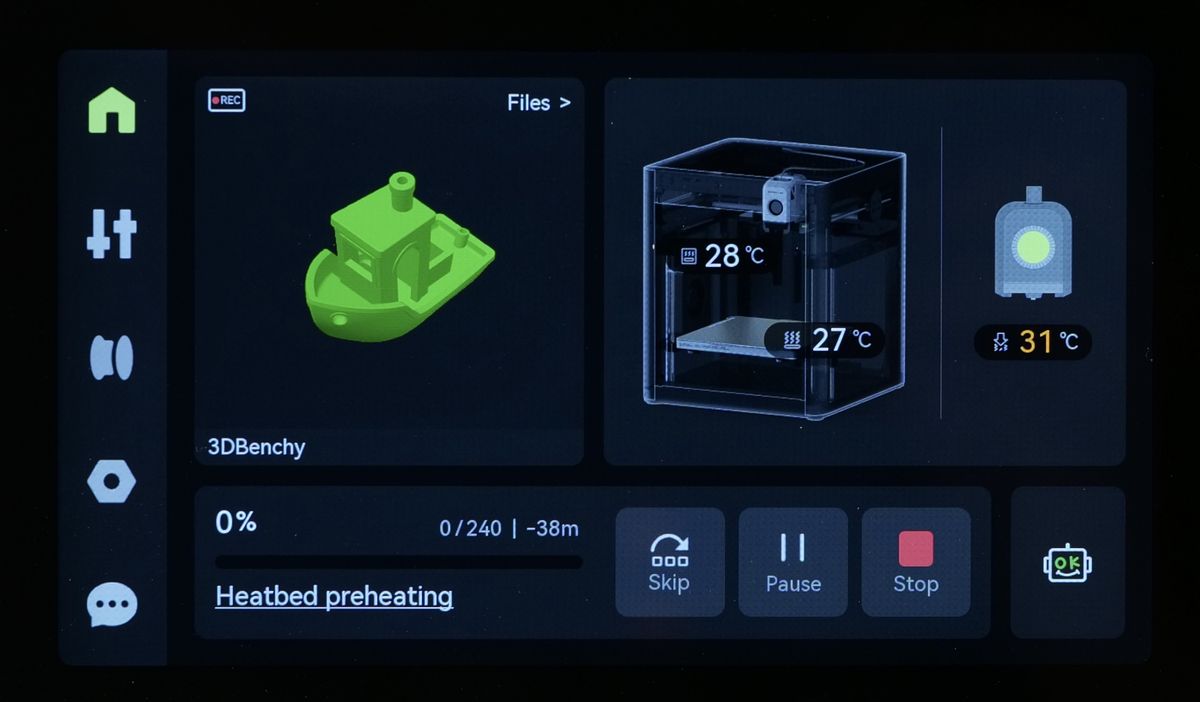
- That’s it! The model is now going to be printed from the Micro SD card.
Printing from the Micro SD card using Wi-Fi Transfer
If you wish to avoid needing to handle the Micro SD card, you can also directly send the prints to the X1C using Wi-Fi, even if you don’t have an internet connection. This transfer uses the local LAN network for transfering the file between your computer and the printer.
On your computer, open Bambu Studio and import the model you wish to print, then follow these steps:
- Select the correct Printer Type.
- Select the correct Plate Type.
- Select the type of filament you wish to print with.
- Click on Slice Plate.
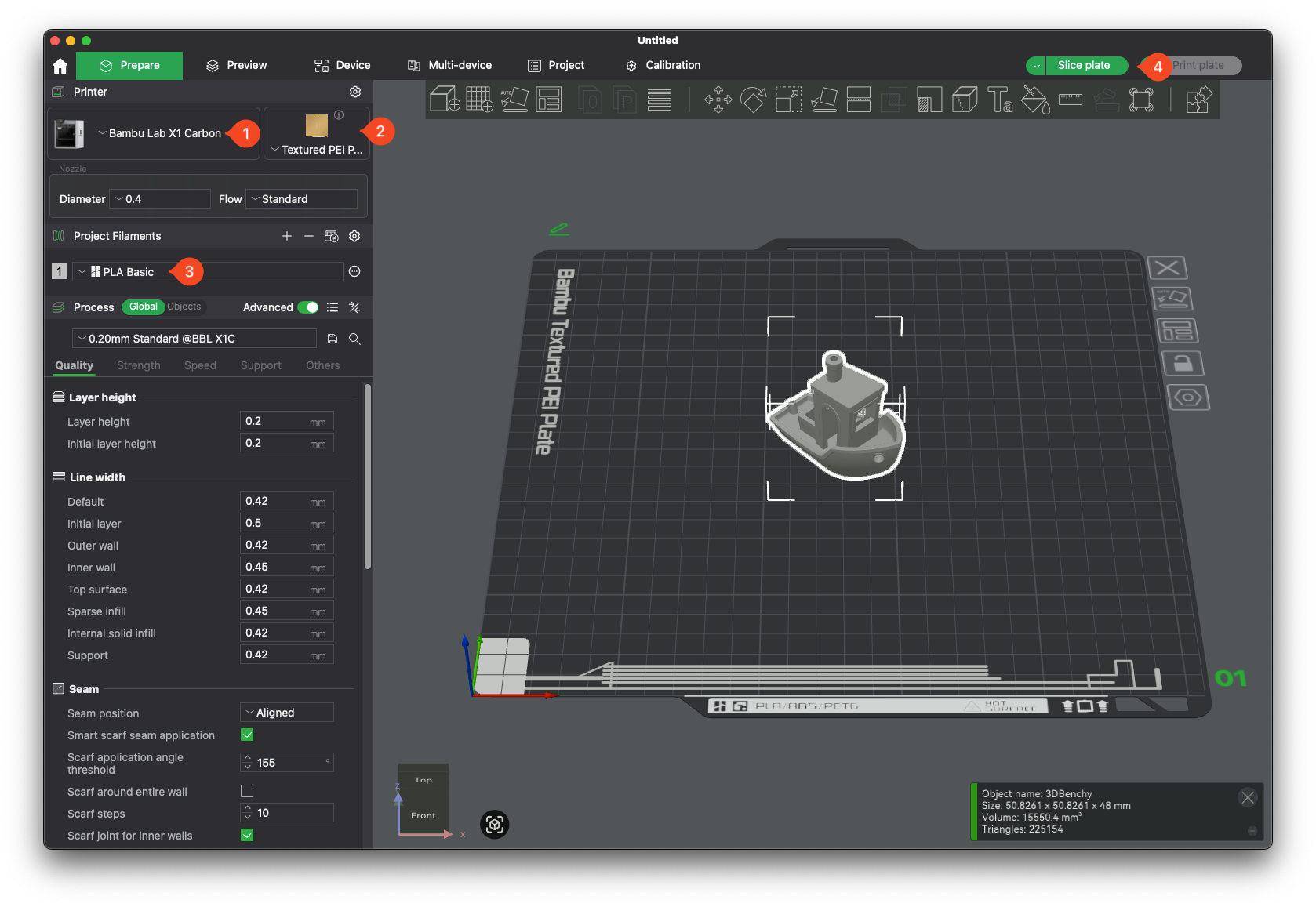
- Once the file has been sliced, the model preview will be shown.
- Select the small arrow next to the Print Plate.
- Click on the Send option.
- Click Send again.
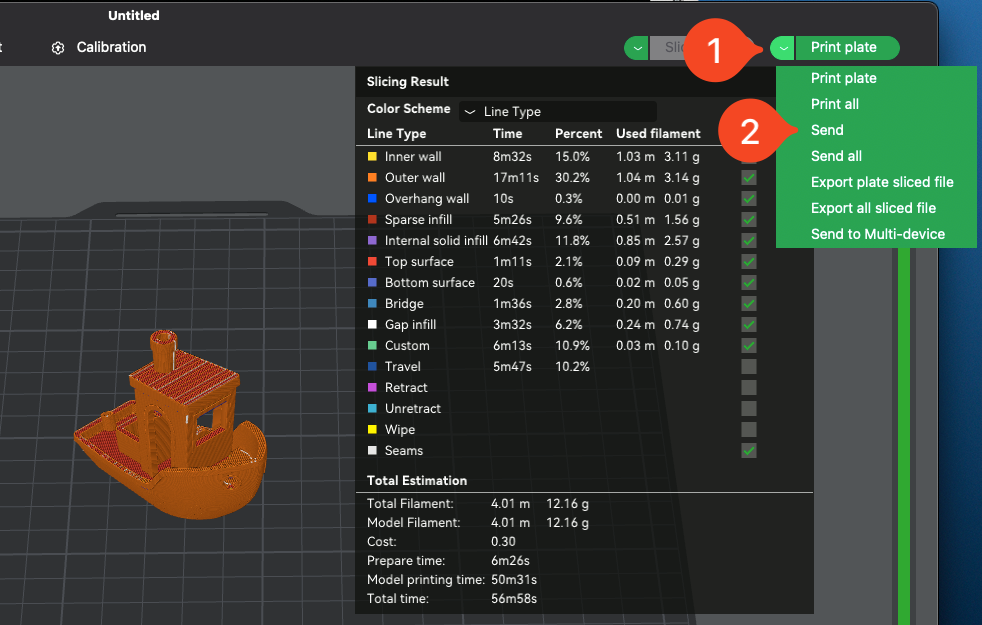
Select the printer you want to send to in the pop-up window and click Send.
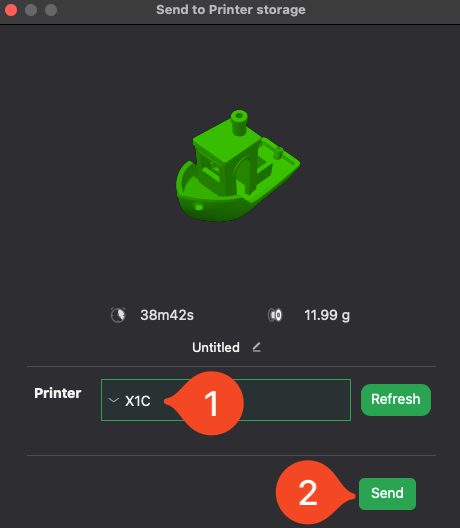
Once the file is transferred to the Micro SD card, you can start the print using the printer screen options, as described in the above step.