How to use the AMS Filament Backup Feature
What is the AMS Filament Backup Feature?
The AMS (Automatic Material System) filament backup feature is a functionality offered by Bambu Lab’s 3D printers including the A1, designed to ensure uninterrupted printing by automatically switching to a backup filament spool when the current one runs out.
This feature is particularly useful for long print jobs or when you are not available to manually replace filament, minimizing waste and preventing print failures.
Important
For the filament backup to work, the backup spool must have identical properties to the primary spool, including brand, material type, color, and nozzle temperature. This strict requirement ensures consistent print quality, as differences in filament properties could lead to issues like nozzle clogs or print quality inconsistencies.
For example, it is recommended to use Bambu filament as a replacement for Bambu filament and non-Bambu filament for non-Bambu filament to maintain compatibility. If no matching filament is found, the AMS will pause the print and prompt you to replace the empty spool, avoiding potential errors.
Additionally, the backup spool must be loaded before starting the print, as the AMS does not allow configuring or loading a backup during an active print job.
How to enable the AMS Filament Backup Feature
To use this feature, start by loading two identical spools of filament in the AMS in the first two slots of the unit.
If you use Bambu Lab Filament, the filament proprieties will be automatically detected using the RFID, and will be displayed as shown below.
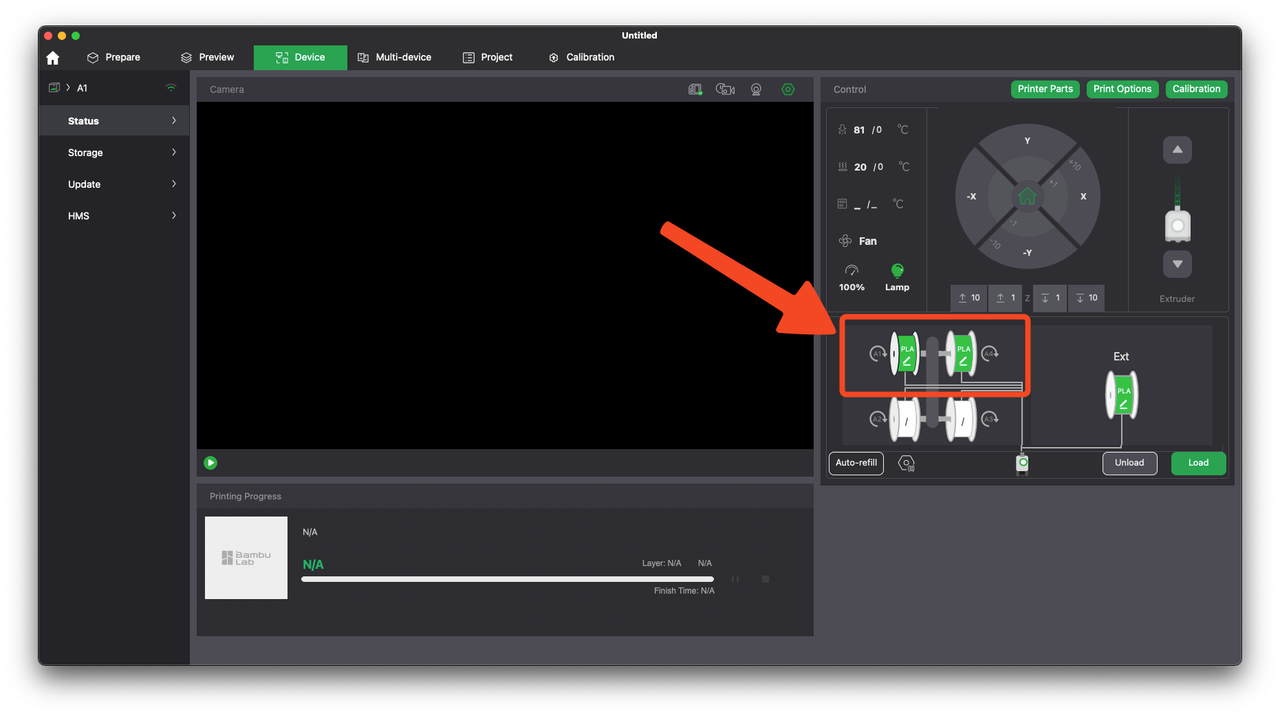
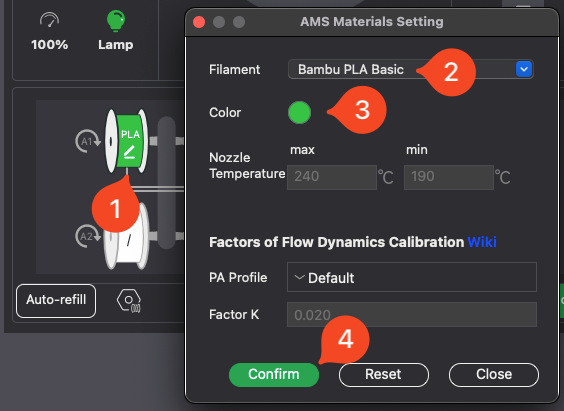
If you are using Generic filament, you will need to manually adjust the filament. To do this, click on the edit button, select the filament type and color, then click confirm. As previously mentioned, the filament needs to be identical.
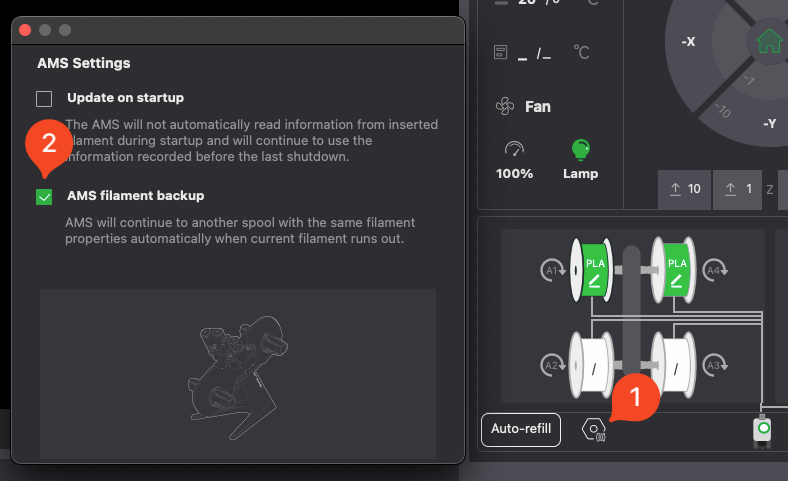
It’s also important to ensure that the AMS filament backup feature is enabled, as shown in the image below:
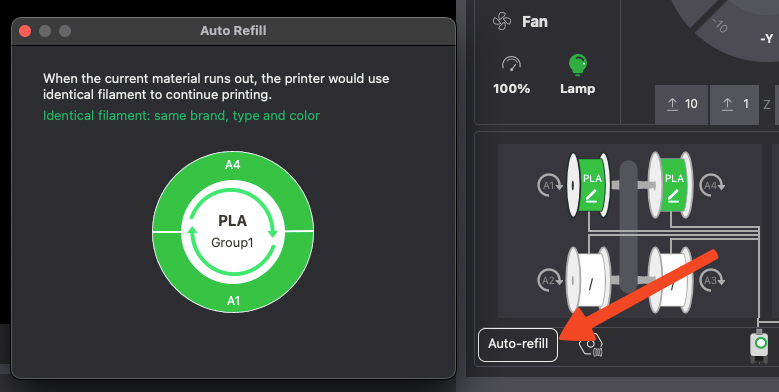
Once this operation is done, you can confirm how the printer will use the filament by clicking the Auto-refill button.
That’s it! Simple, right?
All you have to do now is to start a print, and the AMS will take care of the filament swap when the time comes.