How to save filament and time when printing multi-color with AMS
Printing with the A1 and the AMS lite system allows you to print with up to 4 colors at the same time, but one of the drawbacks is the increased filament waste generated by the purge between colors.
Every time the filament is changed, the old filament is cut above the nozzle, the AMS retracts the filament, then the new filament color is pushed inside the nozzle. The remaining filament inside the nozzle needs to be purged so that the color transitions fully from the old one to the new one.
This process is done for every layer where there is more than one color, and can happen multiple times per layer, depending on how many colors there are on that particular layer.
In simple terms, if the model printed has 4 filaments at the same layer, the AMS will need to swap the filament 4 times for a layer which leads to increased filament purging
There are some tricks you can use to minimize this filament waste, and we will discuss each of them below.
Print multiple identical models at the same time
Depending on the type of model, you can save filament by printing multiple models at the same time.
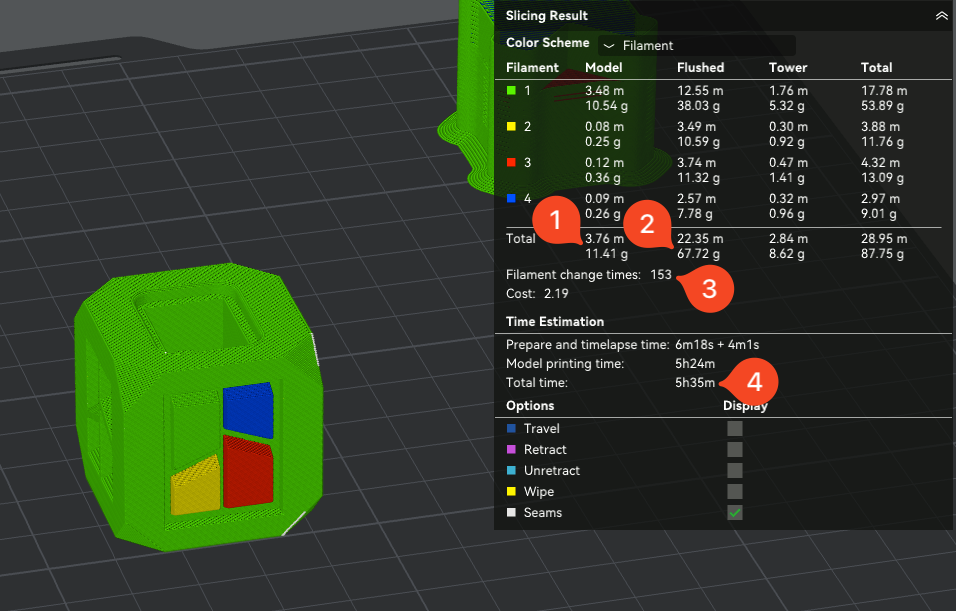
Using this cube with four colors configured, if you are printing a single model where the filament needs to change 153 times, you will have the following usage:
- 11.41 g of filament used for the model
- 67.72 g of filament used for flushing the colors
- 153 filament changes
- 5h 35 m of print time / model
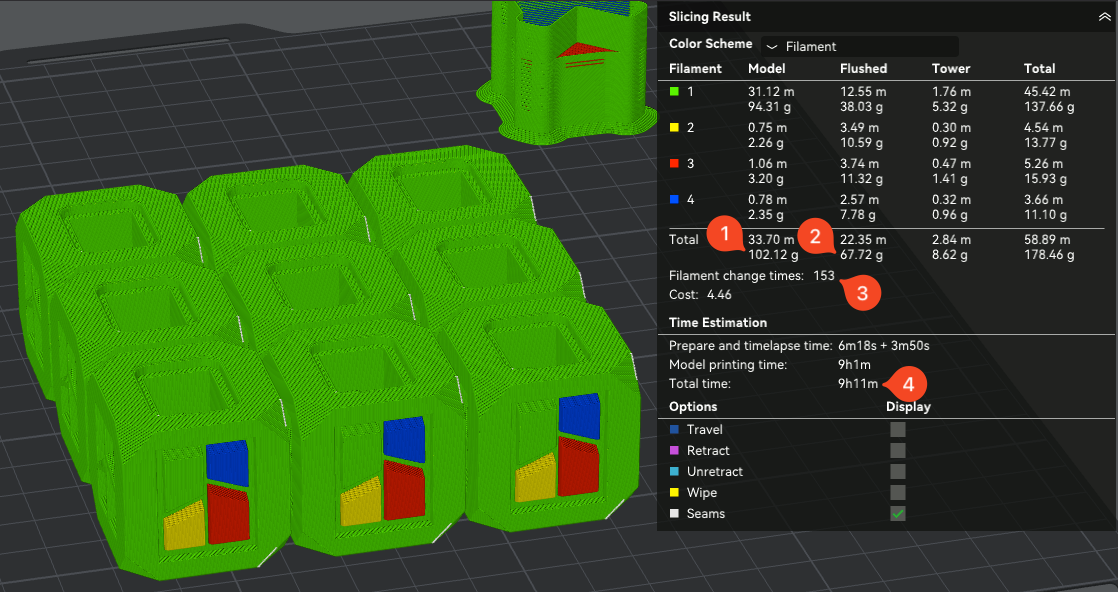
As previously mentioned, for each color change, there will be a purge process done. But if you increase the number of identical models printed at the same time, the color changes will remain the same. This is because once you change the filament, you will be printing with the same color for all the models, thus saving time and filament.
Using the same example to print 9 identical cubes, the usage will be the following:
- 102.12 g of filament used for the models (~11.34g / model)
- 67.72 g of filament used for flushing the colors (the same amount as for a single model)
- 153 filament changes (the same amount as for a single model)
- 9h 11 m of print time (~61 minutes / model)
Flush into infill
Another great way to save additional filament when printing in multi-color is to enable the Flush into objects’ infill feature in Bambu Studio, available under the Others tab.
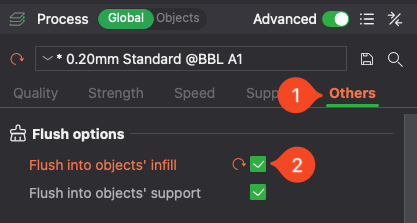
When this feature is enabled, the filament volume for flushing the filament will be lower, as some of the filament will be used for printing the infill of the model. Considering that the infill will not be visible, it is not important to completely flush the previous filament color before starting the print.
Using the same 9-cube example as before, the usage will be the following:
- 102.12 g of filament used for the models (identical as without this feature enabled)
- 53.40 g of filament used for flushing the colors (lower flushing ammount)
- 153 filament changes (the same amount as for single or multiple models)
- 8h 50 m of print time (~66 minutes / model)
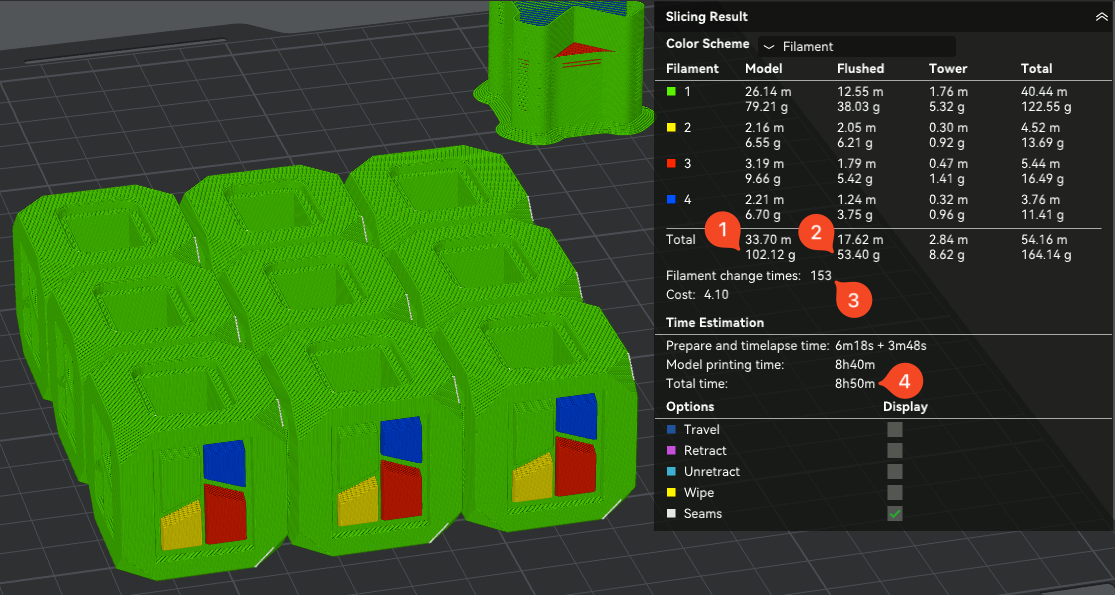
Greater savings can be achieved for models that have a larger amount of infill required.
Use a larger layer height
If your model doesn’t need to have a high vertical resolution, you can lower the flushed filament waste by increasing the layer height. In the previous examples, a layer height of 0.2mm was used.
Increasing the layer height from 0.2mm to 0.24 mm will lower the amount of flushed filament by lowering the number of filament changes.
Using the same 9-cube example as before but sliced at a 0.24mm layer height, the usage will be the following:
- 102.46 g of filament used for the models
- 43.01 g of filament used for flushing the colors (lower flushing amount)
- 126 filament changes (lower filament changes)
- 7h 21 m of print time (~49 minutes / model)
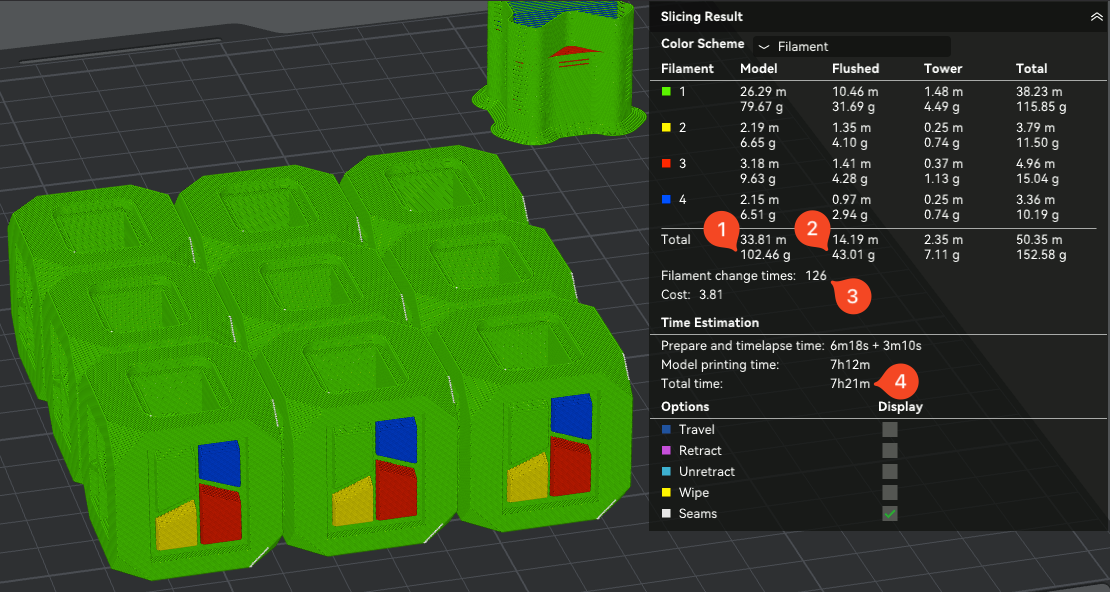
It’s important to know that lowering the layer height will do the opposite, and increase the flushed filament waste and print time.
Using the same 9-cube example as before but sliced at a 0.16mm layer height, the usage will be the following:
- 104.82 g of filament used for the models (slight increase)
- 69.01 g of filament used for flushing the colors (significant increase)
- 191 filament changes (significant increase)
- 11h 8 m of print time (~74 minutes / model)
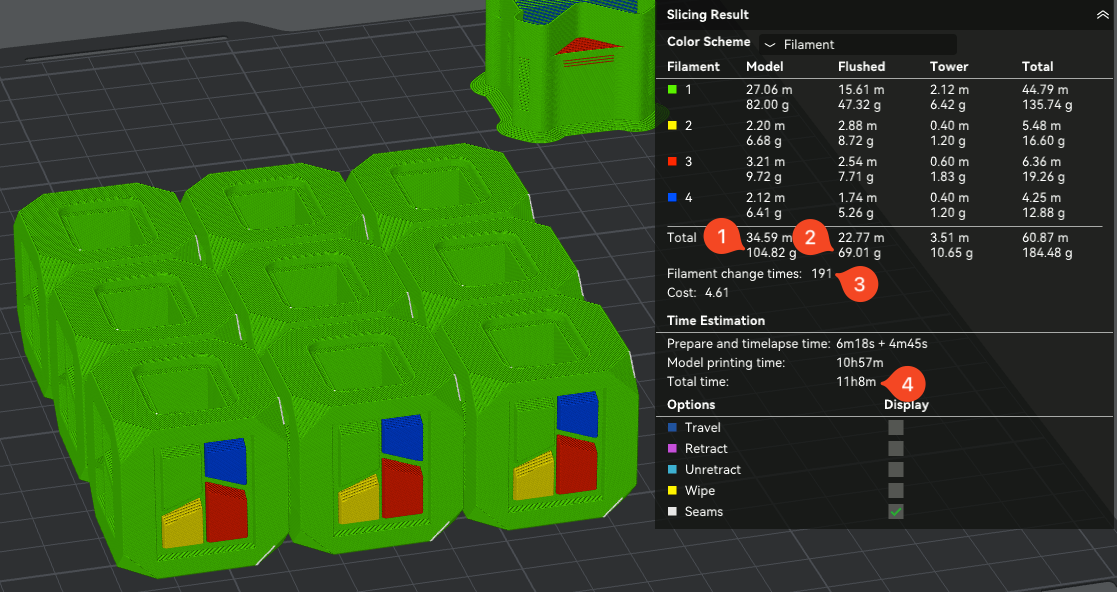
While the usage has increased, it comes with the benefit of a higher resolution of the model. Increasing the number of printed models at the same time can help spread the wasted filament across all the models, thus giving you a lower cost / model.
Don’t mix models in the same print
You might think that increasing the number of models might lead to lower waste. But this can be incorrect if you are combining different models with different features, or with different color positions.
Considering the information shared previously, that filament change happens on every layer and can happen multiple times depending on the number of colors, it’s worth noting that mixing models of different features and colors can have an adverse impact on print time and waste.
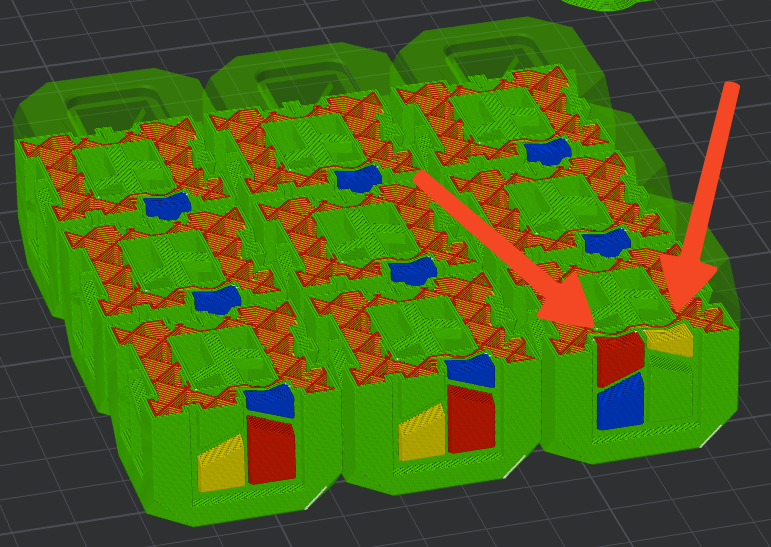
Using the same 9-cube example as before sliced at a 0.20mm layer height, but with a single cube rotated with the colors not matched, the usage will be the following:
- 102.14 g of filament used for the models
- 97.04 g of filament used for flushing the colors (significant increase)
- 284 filament changes (more than double the filament changes)
- 12h 37 m of print time (~84 minutes / model)
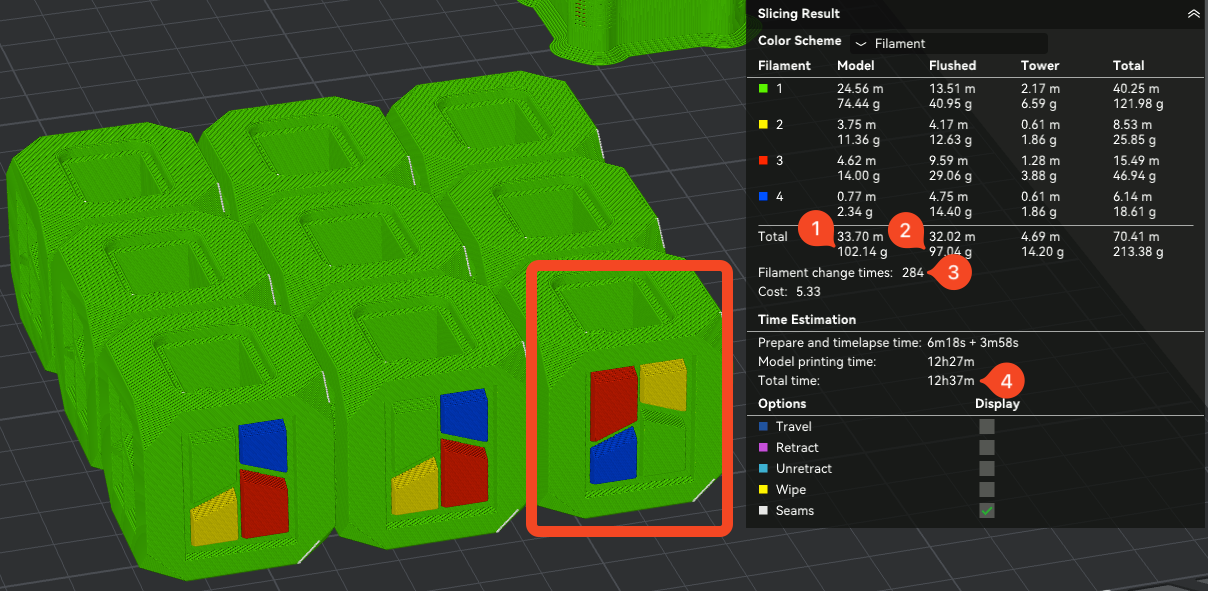
As seen in the image below, due to the introduction of two additional colors in a single model, at a different layer position. The printer will need to perform additional color changes in order to print the differently colored cube:
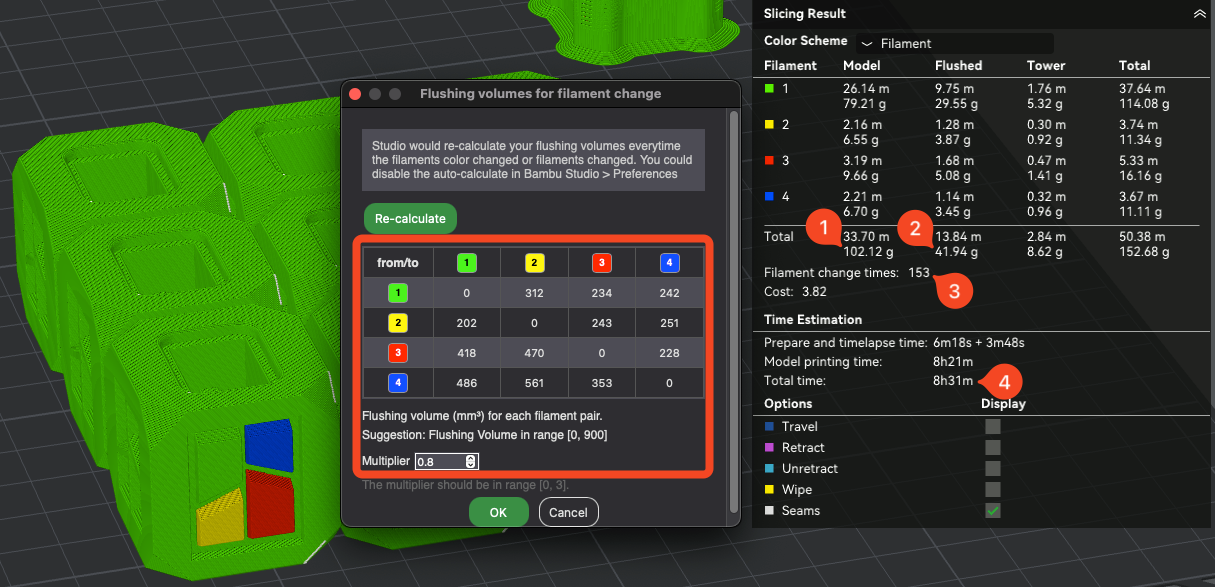
Fine-tune the flushing volume
To ensure a wide compatibility with the various filaments available on the market, and to ensure a clean print result, the flushing volume configured in Bambu Studio is slightly higher.
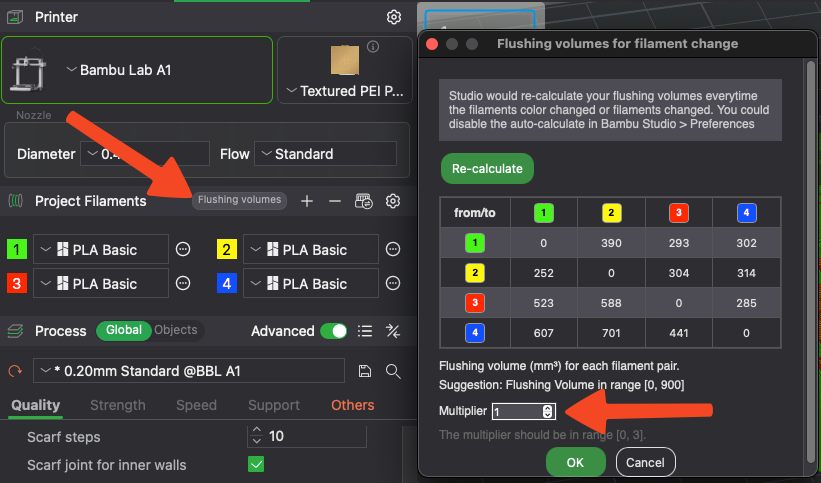
The default values are auto-calculated by the slicer, to ensure no color bleeding between the filaments used.
You can try to lower the Flushing Multiplier from 1 (which is the default) to a value like 0.8-0.9. This will slightly lower the volume of filament flushed between each color, but increase the chances of the filament colors being mixed, which can be particularly visible when the transition is from a dark color to a light color.
Using the same 9-cube example as before sliced at 0.2mm layer height, the usage will be the following:
- 102.12 g of filament used for the models
- 41.94 g of filament used for flushing the colors (lower flushing amount)
- 153 filament changes
- 8h 31 m of print time