
Starting a print from Bambu Handy
If you’re new to 3D printing or simply want to print something cool without adjusting settings in Bambu Studio, Bambu Handy is the perfect solution. With Bambu Handy, you can effortlessly browse a vast collection of free models directly from your mobile phone—anytime, anywhere.
Getting started is easy! Just open the Bambu Handy app and navigate to the Models tab to explore and print with ease. Once you find a model you like, simply tap on it.
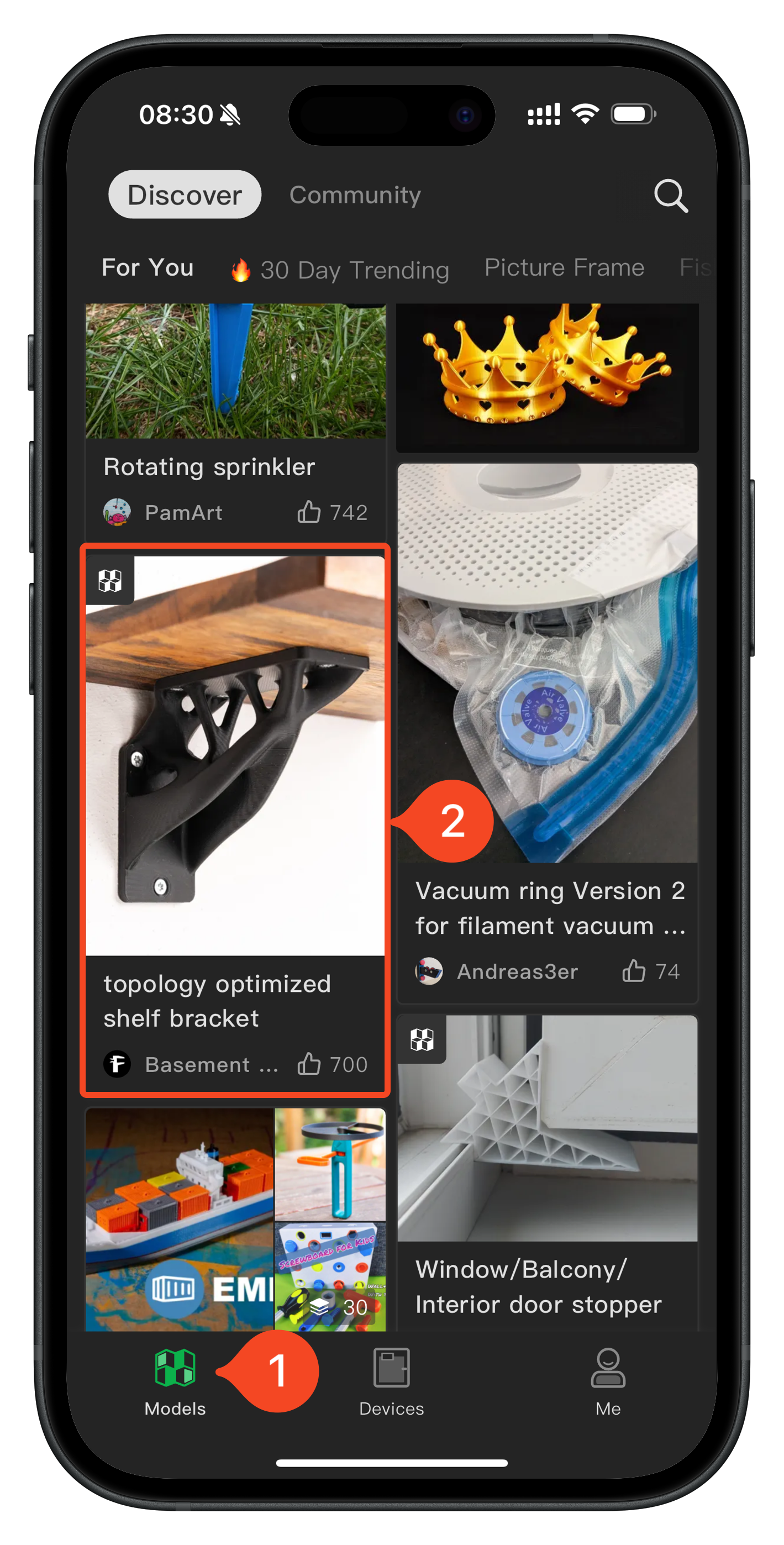
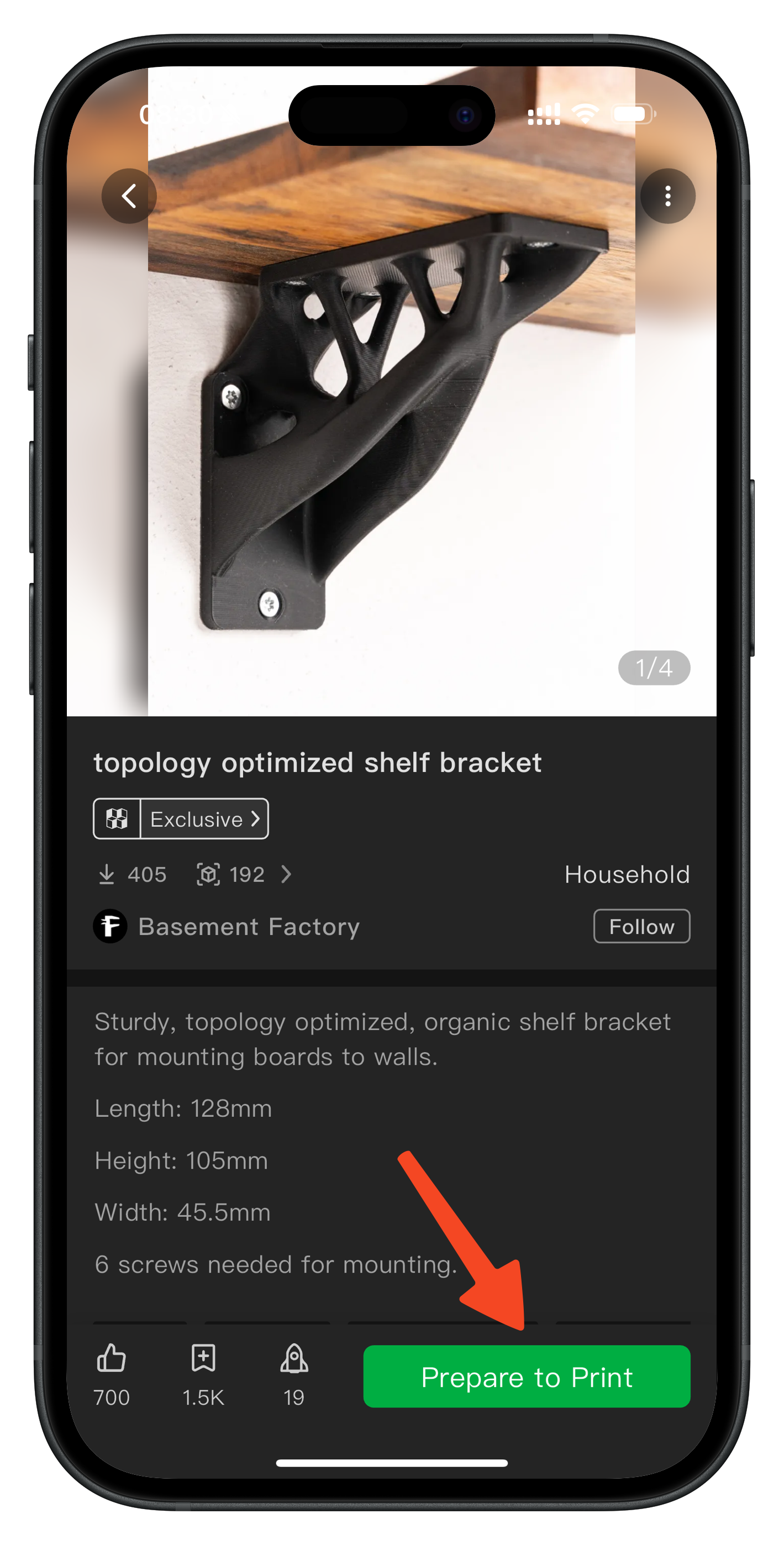
You’ll be taken to the model’s page, where you can find detailed information, including recommendations for how to print it, suggested filament types, and other useful tips to ensure a successful print. When ready, simply tap the Prepare to Print button.
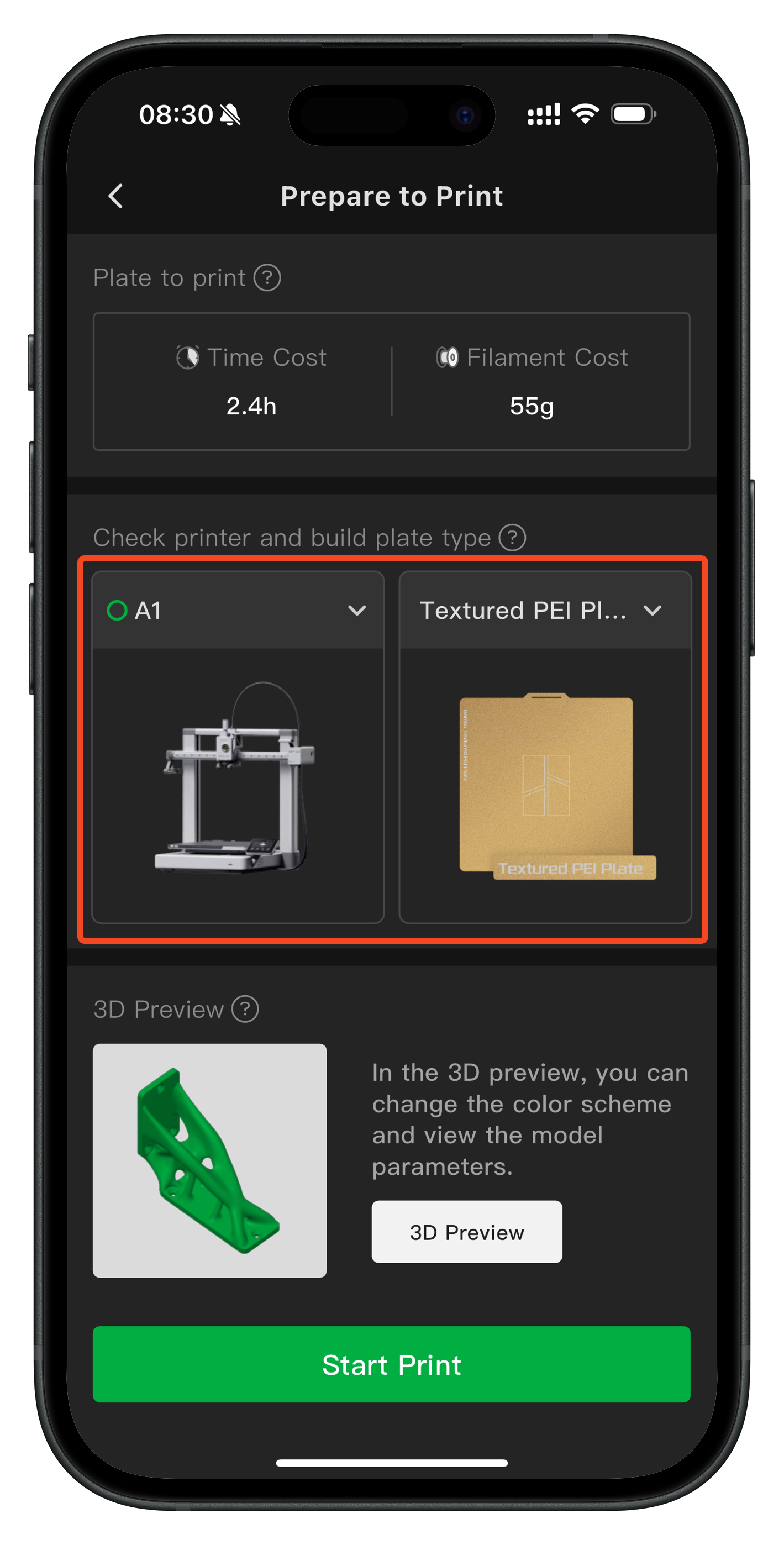
Next, you’ll need to select your printer model and the build plate type installed on your printer. For this example, choose A1 and Textured PEI Plate. Before printing, ensure your plate is clean, and always use a plate that is compatible with the filament you’ve selected for the best results.
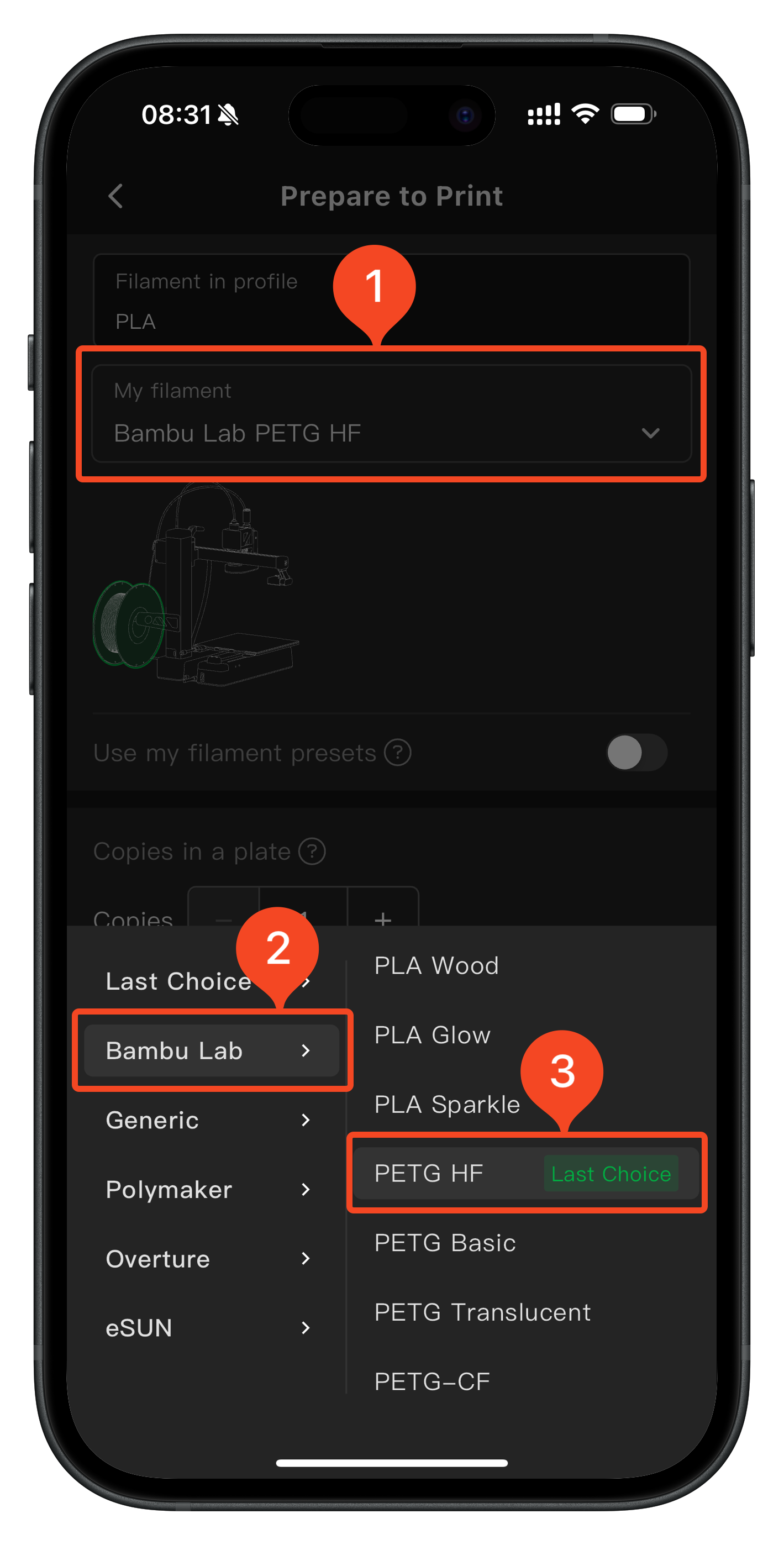
By default, the printer will use the previously loaded filament. However, if you want to switch to a different filament, you can physically load the new filament and select it in the options. For this example, Bambu Lab PETG HF filament has been used. Make sure the selected filament is compatible with your build plate and print settings for the best results.
Now, just tap the Start Print button. That’s it! Easy, right?
Once the print task is sent, the A1 will automatically handle the rest. It will begin by downloading the print file and preparing for printing. This includes heating the nozzle and heatbed, performing a quick calibration check, and prepping the filament before starting the print.
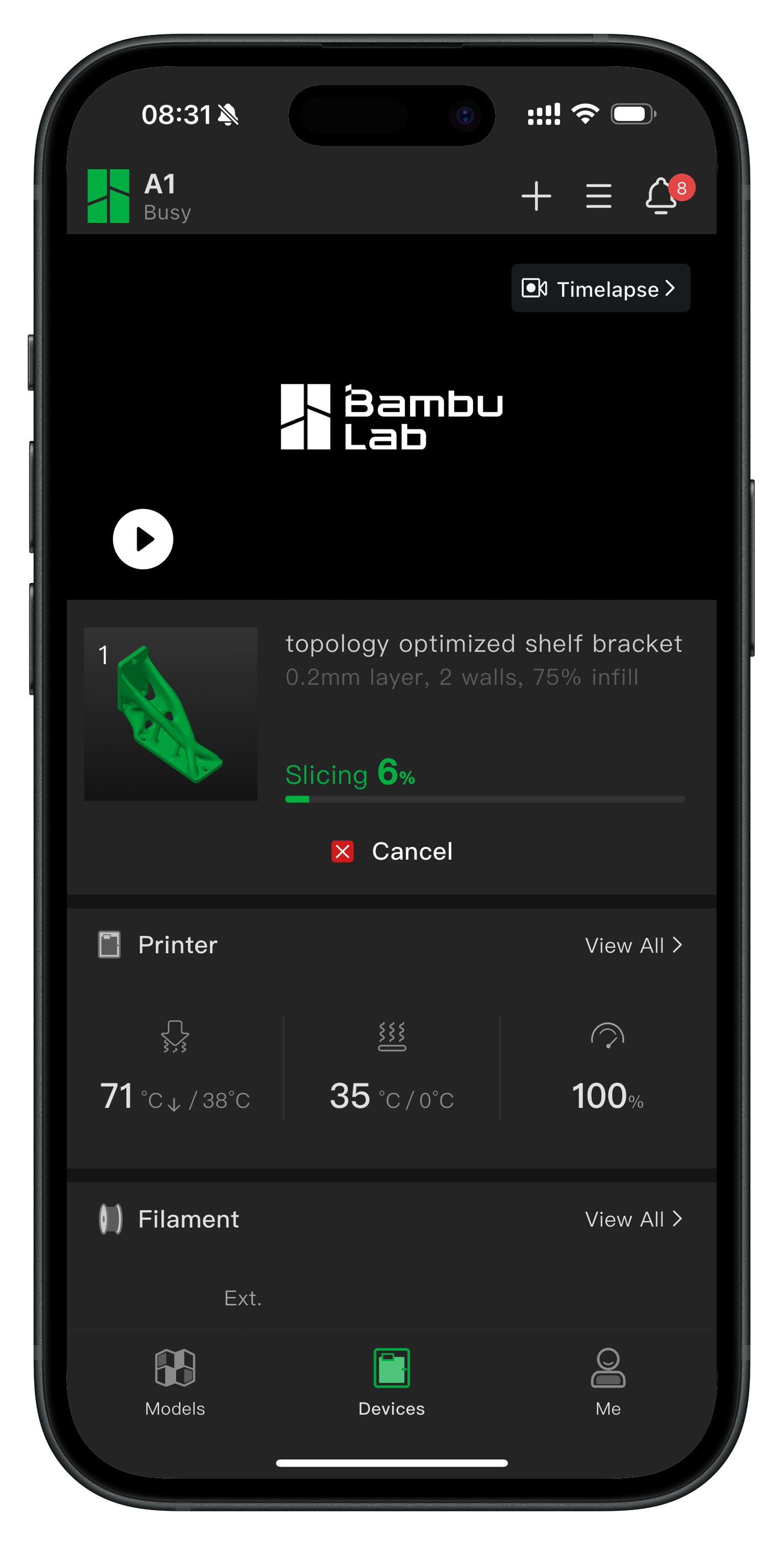
Sit back and watch your A1 bring your model to life!