
Introduction to Bambu Studio and Bambu Handy
Bambu Studio
Bambu Studio is the software program which can be installed on computers running Windows, MacOS and Linux. With Bambu Studio, you can process the 3D models (usually in .stl or .step format) and prepare them for printing them on the X1C by slicing them.
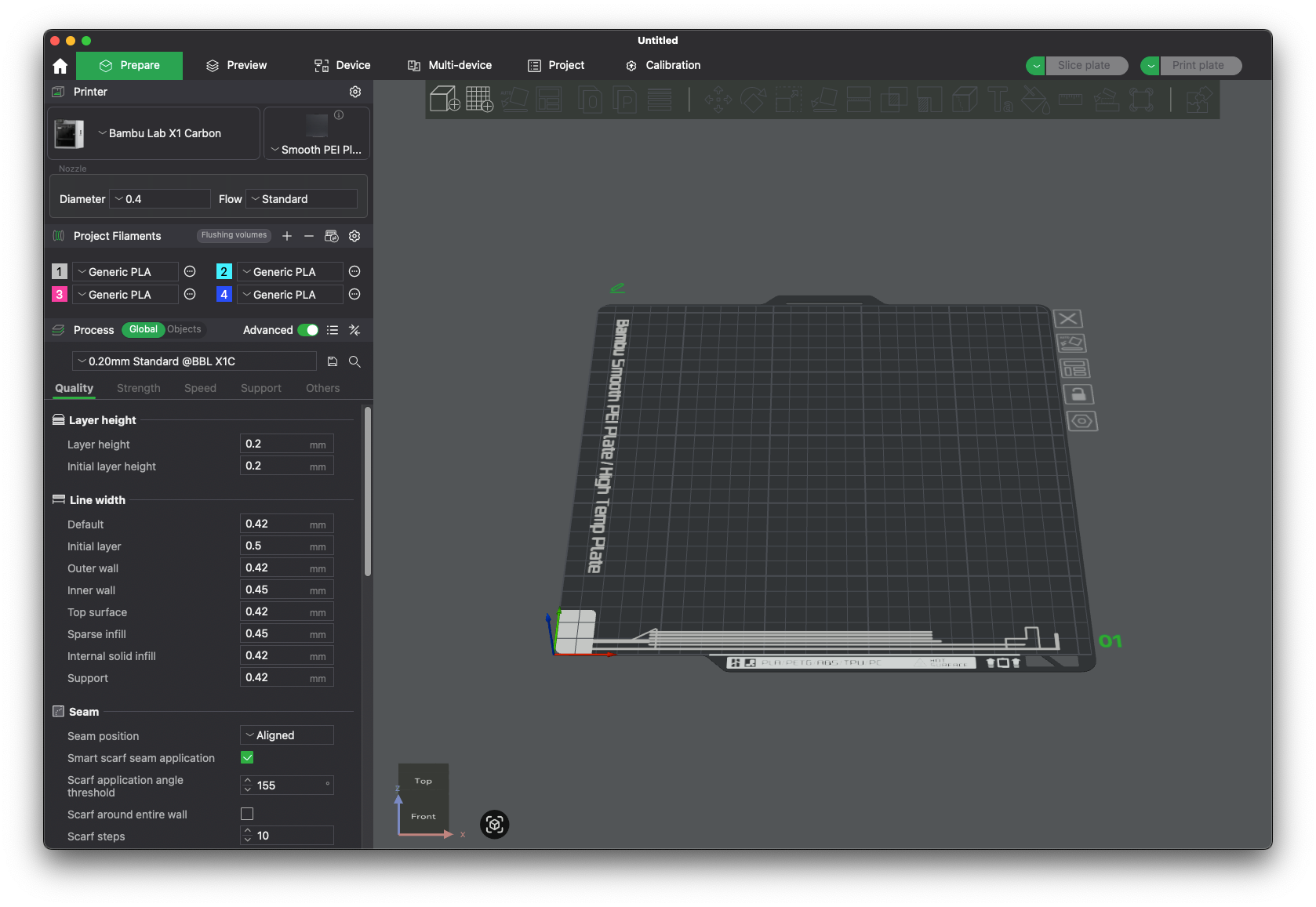
What is slicing?
As the name suggests, slicing refers to the process of taking a 3D model and cutting it into multiple horizontal slices which the printer can replicate. The .stl file is turned into a .gocde file which contains all the movements required by the printer to complete a model.
While the main feature of Bambu Studio is to slice the file, it also provides extensive adjustment options in which you can alter the printing settings and filaments used for the 3D model you wish to print.
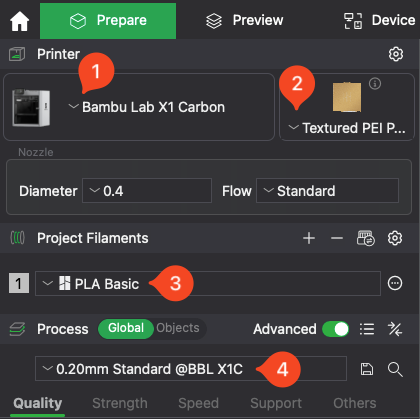
The most basic adjustments you need to do in Bambu Studio is shown in the image below:
- You can select the printer you wish to print the model on, and the right nozzle size (0.4mm comes as default).
- Select the build plate type to match the filament you wish to print.
- Select the filament type and color.
- Select the layer height. A lower layer height will give you more detail, but will increase print time.
More advanced settings grant you the options to scale a model, cut a larger model into smaller pieces, paint the model into different colors for multi-color 3D printing, and more. We will dive into the more advanced settings later in this course.
In Studio, you can also use MakerWorld which is Bambu Lab’s 3D model website from which you can access a plethora of free 3D models to print. Once you find the right model, simply import it and send it to the printer.
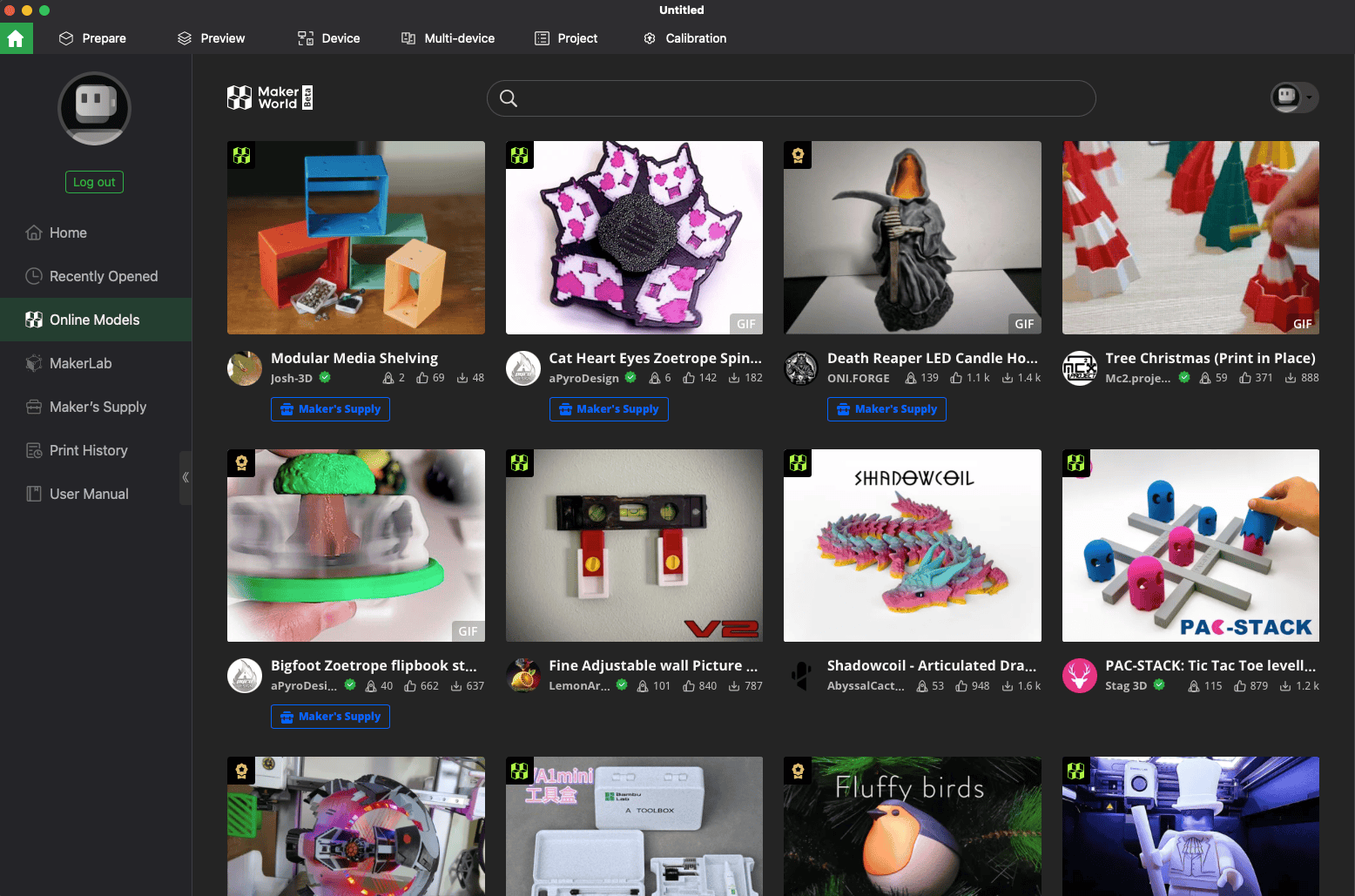
Besides remote starting a print, you can also use Studio to remote control the printer and keep an eye on the print process with the Live View feature.
Bambu Handy
Bambu Handy is a mobile application compatible with iOS and Android which provides remote control over the printer’s features. You can control the printer’s axis, check on your printer’s camera to confirm everything is working as expected and adjust basic settings like print speed or temperature.
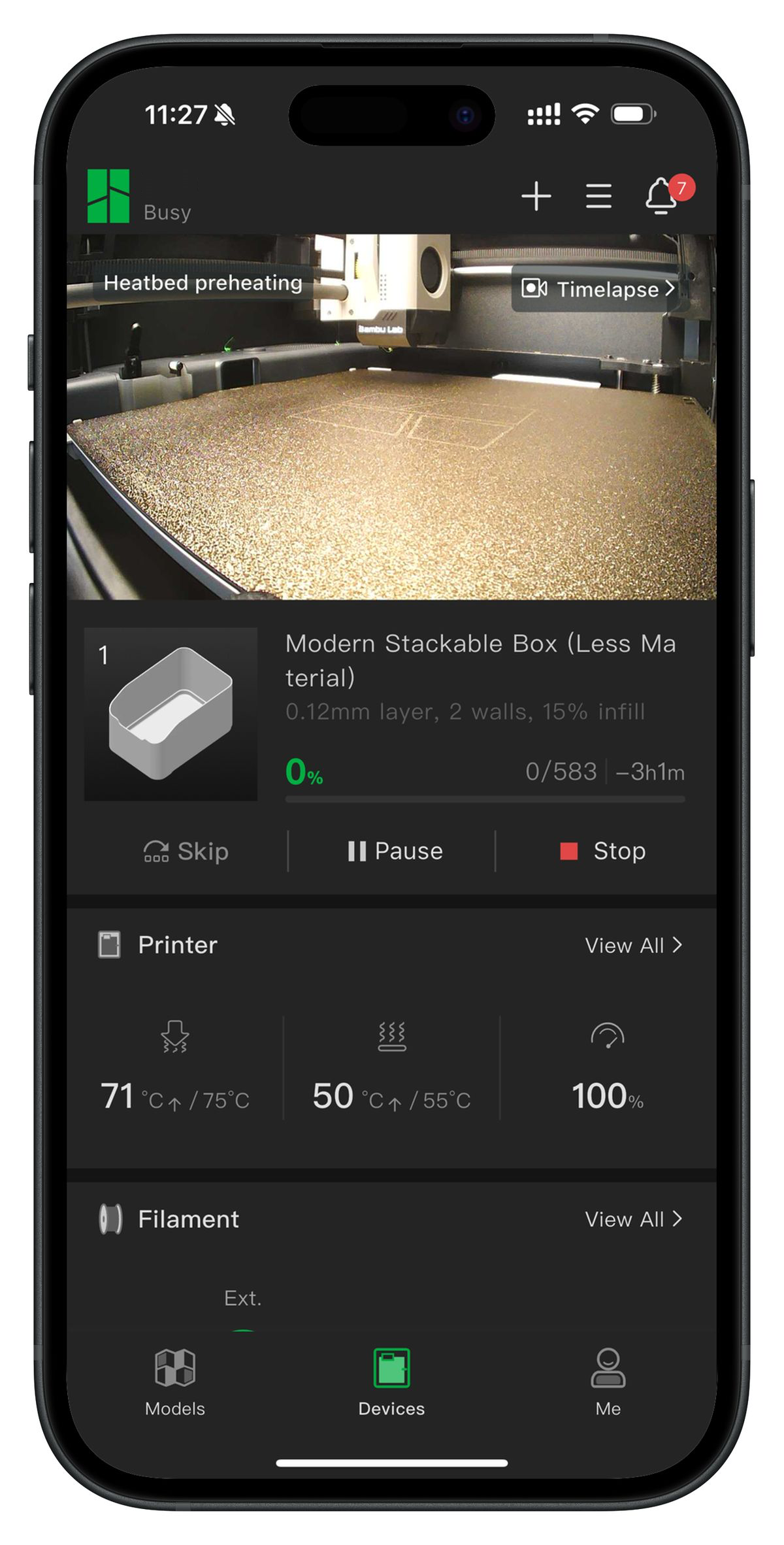
But the Bambu Handy app can do more than that. As you might expect, you can access MakerWorld where you can start a print right from the app without needing to do manual slicing using Bambu Studio, significantly lowering the difficulty of using the printer. In a few simple taps, your printer can work on your model.
Besides the 3D printing features, you also have access to your Bambu Lab Account details, open Customer Support tickets if you need assistance or access the Bambu Lab Wiki if you wish to learn more about 3D printing.