Common print problems and solutions
Filament not sticking to the bed
One of the most common problems you can experience with the x1c is with adhesion of the filament on the bed. The most common issue that can lead to this problem is grease or other contaminants on the plate.
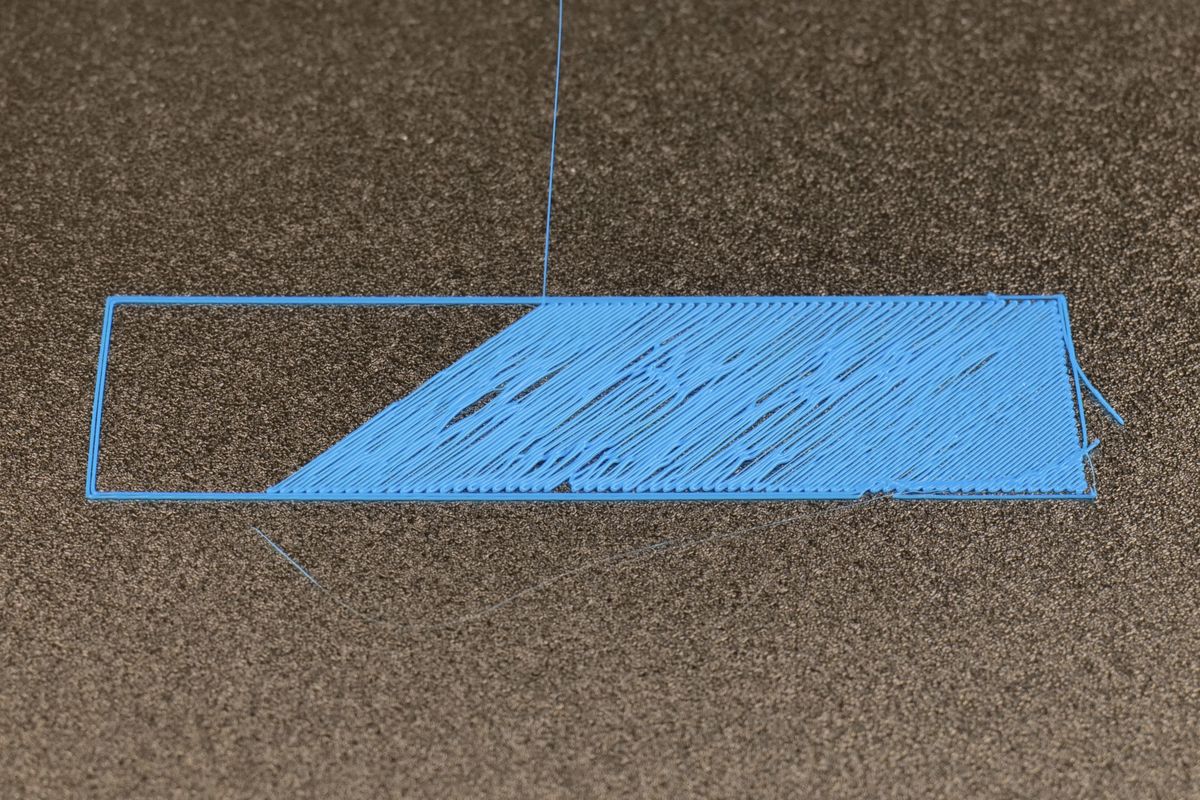
When handling the build plate with your bare hands, natural oils from your skin can reach the surface of the plate. When this happens, the best solution is to wash the plate with hot water and dishwashing detergent that doesn’t contain any specific additives for skin protection or oils. Simply rub the plate with a clean kitchen sponge or brush, then rinse the plate to get rid of the contaminants.
Once the plate is washed, avoid touching the surface and handle it from the sides, to prevent grease or other contaminants from getting on the plate.
You can repeat the washing process every time you are experiencing adhesion issues, but if this solution does not solve the problem, it is recommended to perform a full calibration from the printer menu to ensure the printer self-calibrates again.
Model lost adhesion
If your model has lost adhesion during printing, it is recommended to ensure the slicer settings are correct. One of the common issues for this problem is using the incorrect plate type in Bambu Studio.
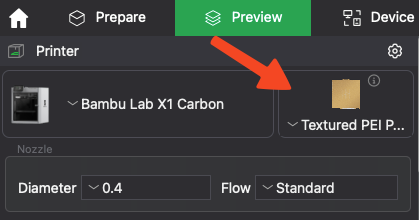
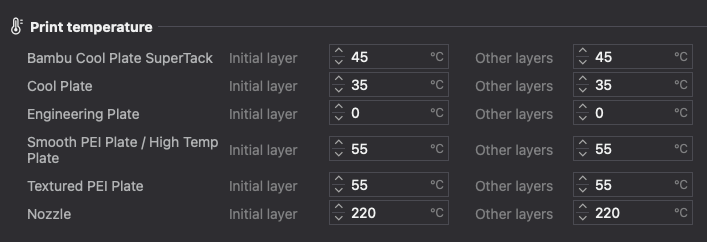
For example, if you slice the file for the Bambu Cool Plate, the heatbed tempeature will be set to 35°C for PLA. But this temperature is not compatible with the Textured PEI plate which will require a higher temperature of 65°C, and will lead to an adhesion failure once the Auxiliary Fan starts.
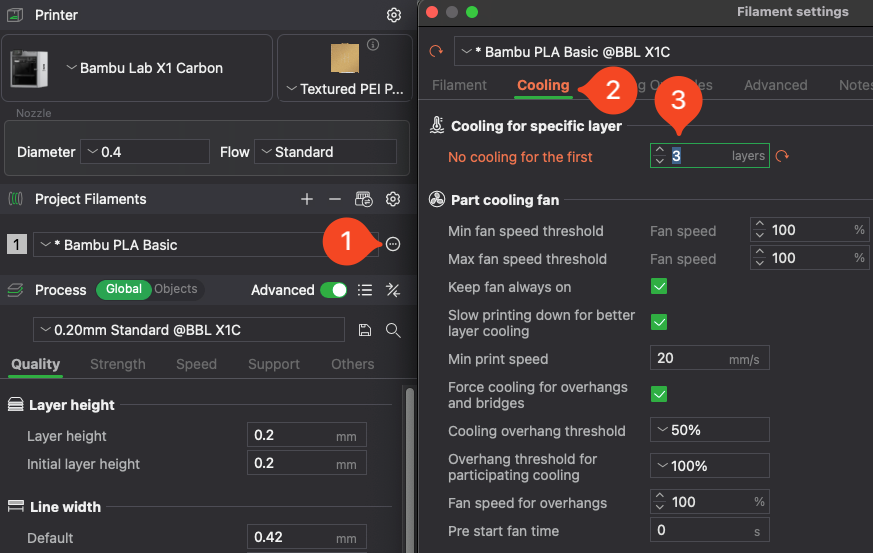
If the correct plate is selected, but the model still looses adhesion, it might be related to cooling. The default PLA profile is set to start the Part Cooling and Auxiliary Fan after the first layer, but on some models it could cause some issues.
One of the solutions is to adjust the cooling settings to start the fans after 3 layers are printed. This can help with the adhesion of the initial layers, and only start the cooling process after the first 3 layers.
Additionally, you can adjust the Auxiliary Part Cooling Fan speed on the same page, by lowering the speed from 70% to 50% which can help.
It’s important to note that the Auxiliary Part Cooling Fan is best used when printing a single model, that requires more cooling. When printing a small model, the AUX Fan will help cool the layers quickly so they are ready for the other layers as soon as possible. If you are printing a large model, or multiple small models on the same plate, the layers will have more time to cool down, so lowring the fan speed of the AUX Fan can help solve potential adhesion issues without impacting the print quality significantly.
Model looks soft and melted
The most common reason for models that look soft and melted as in the image below, is the Part Cooling Fan. If not enough cooling is applied to the print, the printed layers don’t have enough time to cool and solidify as expected.
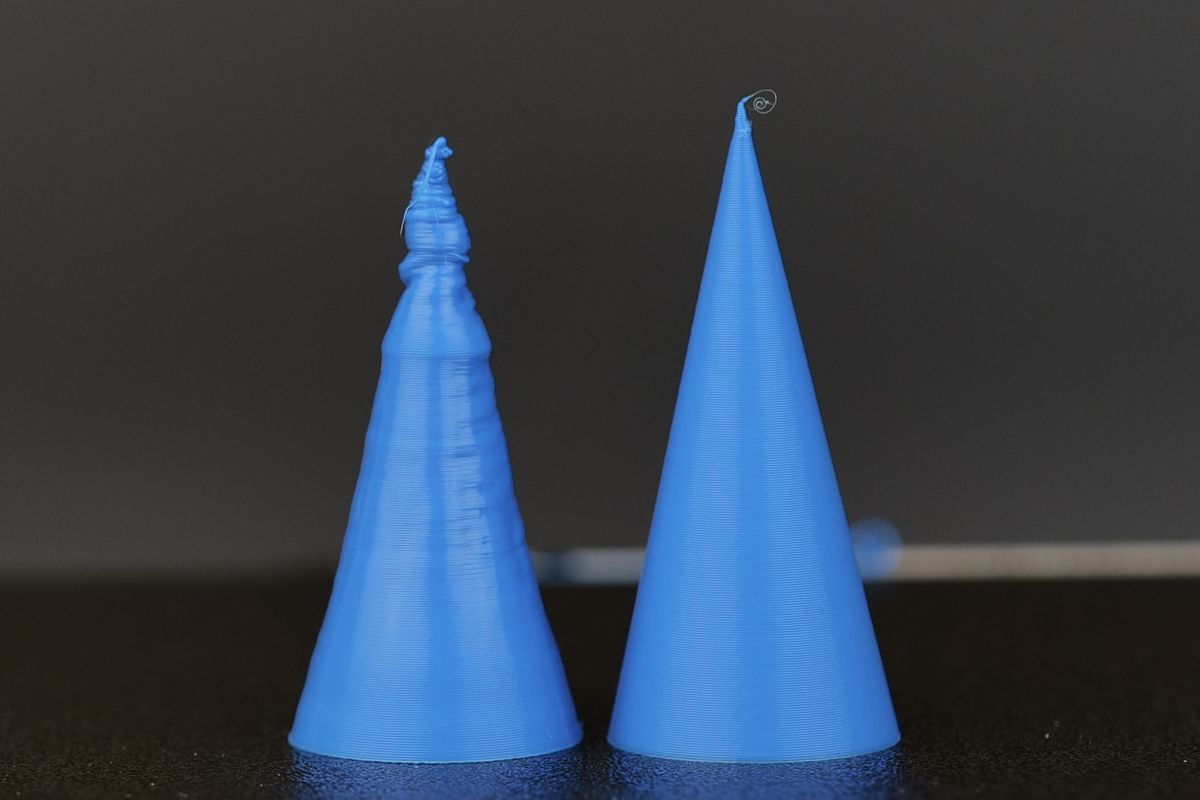
To this problem, it is recommended to turn on the part cooling fan using the Bambu Studio controls under Device → Part cooling fan section. Turn the part cooling fan to 100% and confirm if the fan is spinning.
If the fan is spinning correctly, the issue is related to the printing profile and settings you have selected for your print.
If the fan is not spinning as expected, then the issue can be related to a faulty Part Cooling Fan, bad wire connection to the part cooling fan, or something related to the Toolhead board.
Other reasons for this problem might be a print speed set too high, the hotend temperature is set too high, or the minimum layer time set in the slicer is too low. This Bambu Lab Wiki article covers most probable reasons for this problem, and can provide additional solutions to solve the issue.
Filament not coming out of the nozzle – Nozzle is clogged
A common issue you might encounter during 3D printing is filament not extruding from the nozzle. The most frequent cause of this problem is a clogged nozzle, typically due to small particulates reaching the hotend that are slightly larger than the nozzle’s opening. To resolve this, you can either replace the nozzle with a new one (the quickest option) or follow a guide to unclog it, which may take a bit more time. Of course, the replaced nozzle can be re-used after it’s unclogged, so it’s a good idea to have a spare for a quick swap.
Unclogging the nozzle is usually straightforward and often involves using a thin needle to push through the nozzle’s orifice to clear any debris.
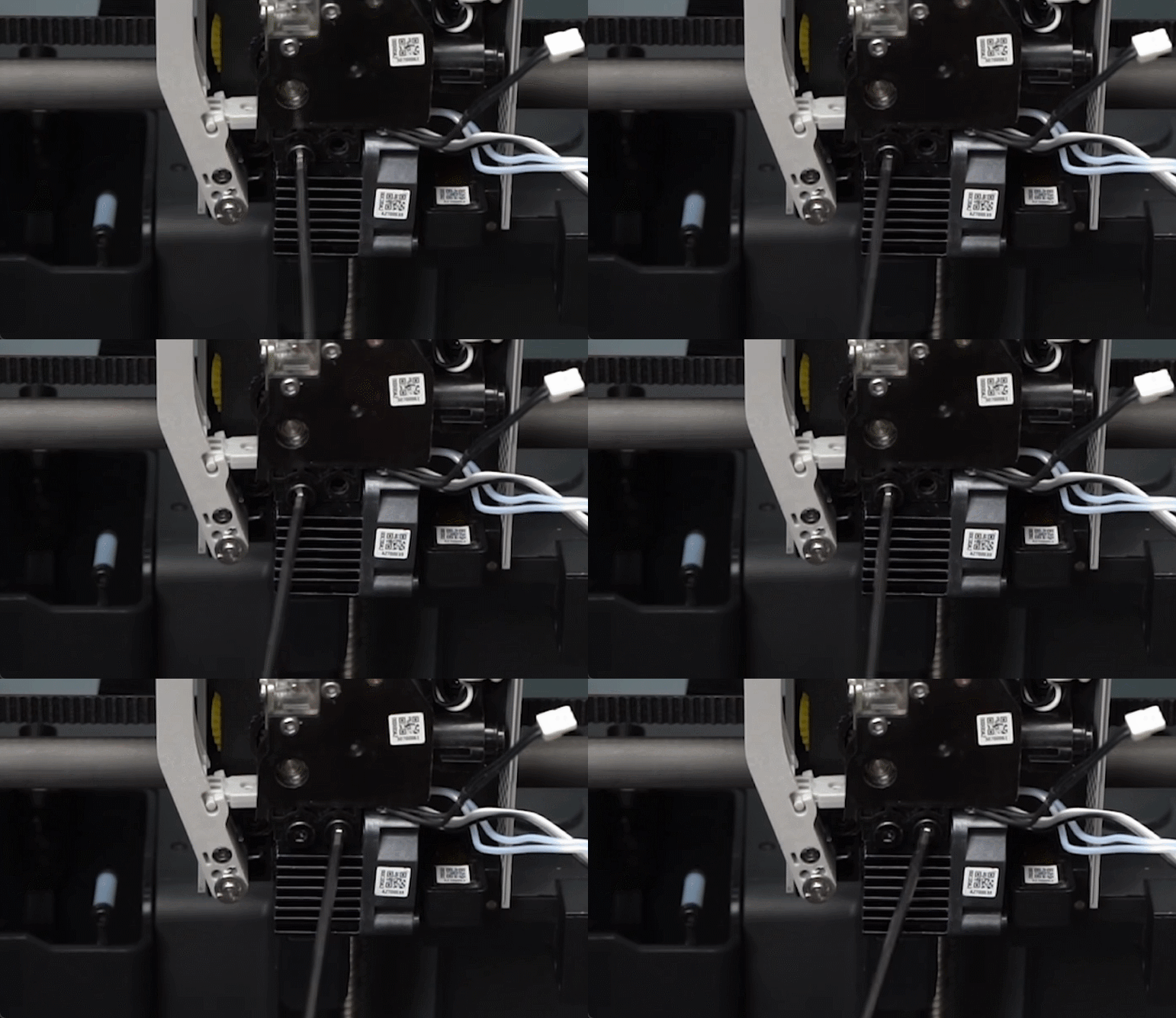
However, if the nozzle is old or has seen extended use, filament buildup inside the nozzle may be more stubborn and require extra effort to remove. You can try performing a few cold-pulls to try and dislodge the clog.
To prevent clogs and keep the nozzle functioning smoothly, it’s essential to keep your printer and filament away from dust and debris. Regularly cleaning the nozzle using the cold-pull method is also recommended to ensure the interior remains free of obstructions.
Filament stops extruding during print – Extruder is clogged
In certain situations, the extruder can be clogged with a broken piece of filament or other filament debris. When this happens, the extruder will need to be disassembled to access the gears and remove the piece of filament which blocks the filament path.
A detailed guide for how to clean the extruder and remove any clog from it is available on the Bambu Lab Wiki.
Filament wisps and strings
If your print has a lower quality, and there’s small wisps and strings of plastic around it – commonly known as stringing – you might need to investigate what causes the issue and solve it.
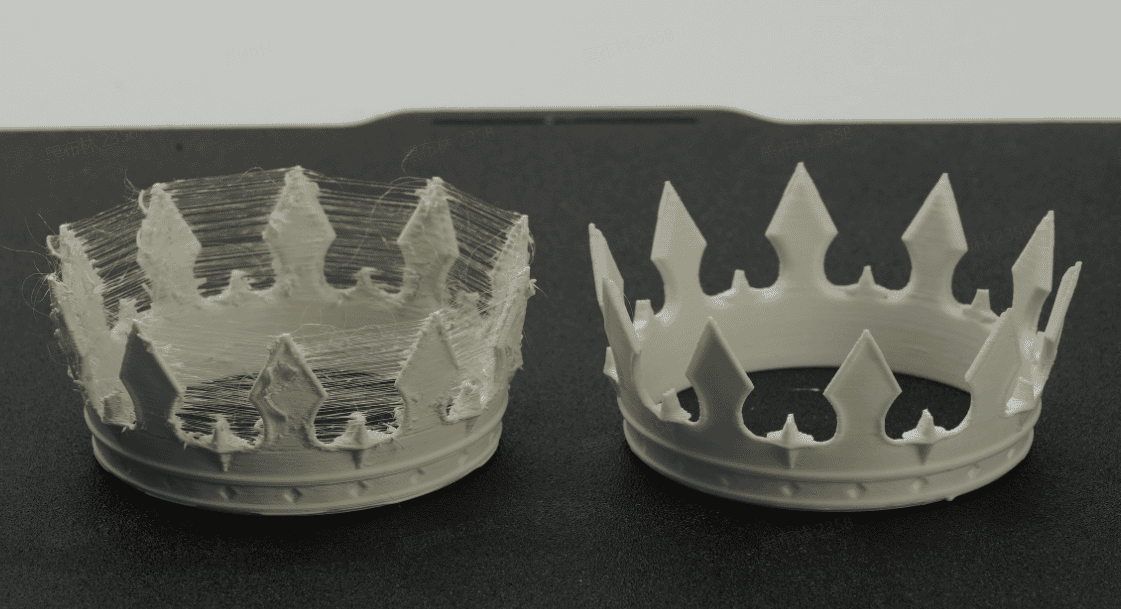
The most common reason for stringing is using filament that has absorbed moisture. Over time, the filament can absorb moisture, which will bubble inside the hotend during printing. When that happens, the flow of the filament will be inconsistent and the printer cannot accurately control how much filament is extruded, leading to the small wisps of filament around the model.
The solution in this case is to dry the filament according to the requirements of your filament type, then store it into a moisture-proof bag. A detailed guide for how to dry filament is available on the Bambu Lab Wiki.
Keeping the nozzle clean is also a good solution to stringing, as over time, the tip of the nozzle will gather filament around it, which will drip during printing and can cause small blemishes on the printed model.
Simply heat the nozzle to around 220C and wipe the tip of the nozzle with a paper towel, while making sure not to touch it with your bare hands.
Small features of the model not printed
When printing objects that have small features or tiny details, you might find that some of them might not be printed correctly, or might be actually missing from the print. This kind of issue occurs when the nozzle used is larger than the 3D printed feature.
In the example below, you can see a representation of small features not being printed.
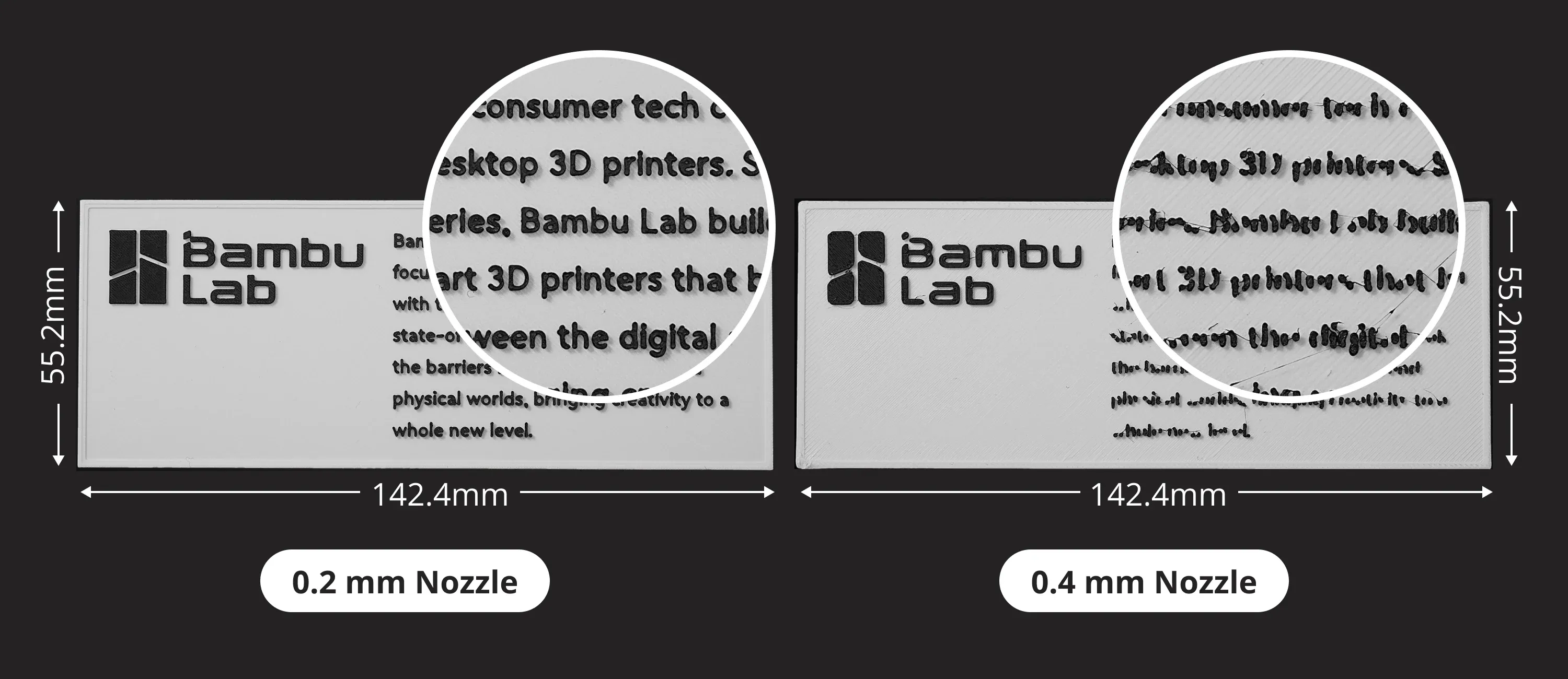
One way to try and solve this problem is to change the Wall generator setting in Bambu Studio from Classic to Arachne. This wall generator option has a different algorithm for printing which can provide improved results for objects with small features.
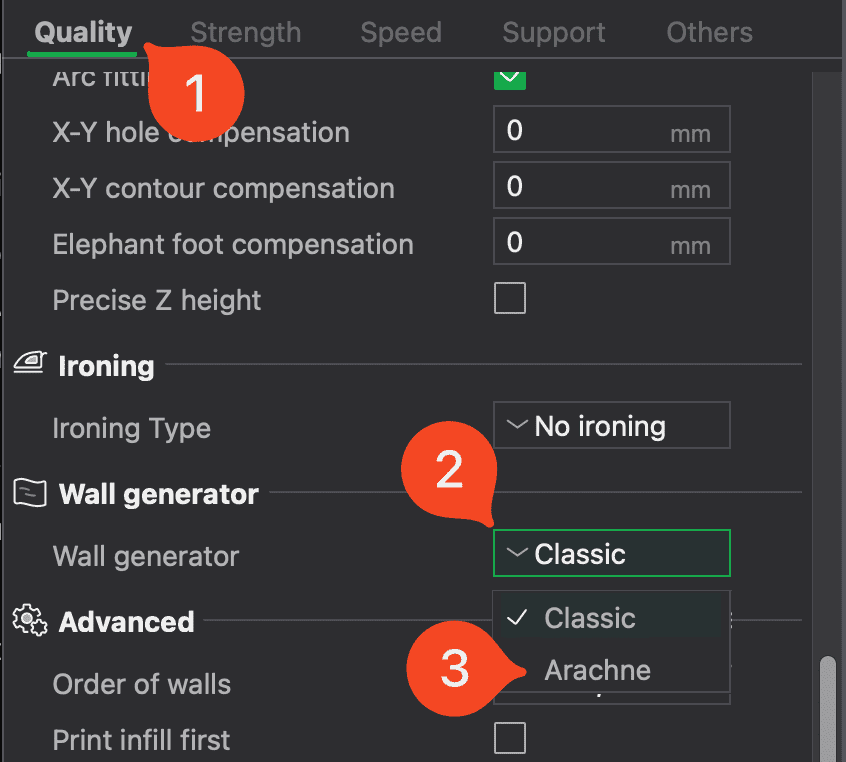
If using this option doesn’t produce the expected result, it is recommended to replace the nozzle with a different one which has a smaller orifice. For example, if you tried printing with a 0.4 mm nozzle and the features are not correctly printed, you can try a 0.2 mm nozzle.
Other potential print problems and solutions
The Bambu Lab Wiki has a more detailed list of potential print issues and suggestions on how to solve the problem.