Face Scanning with Raptor Pro
Part 3 / 7
Face Scan Workflow
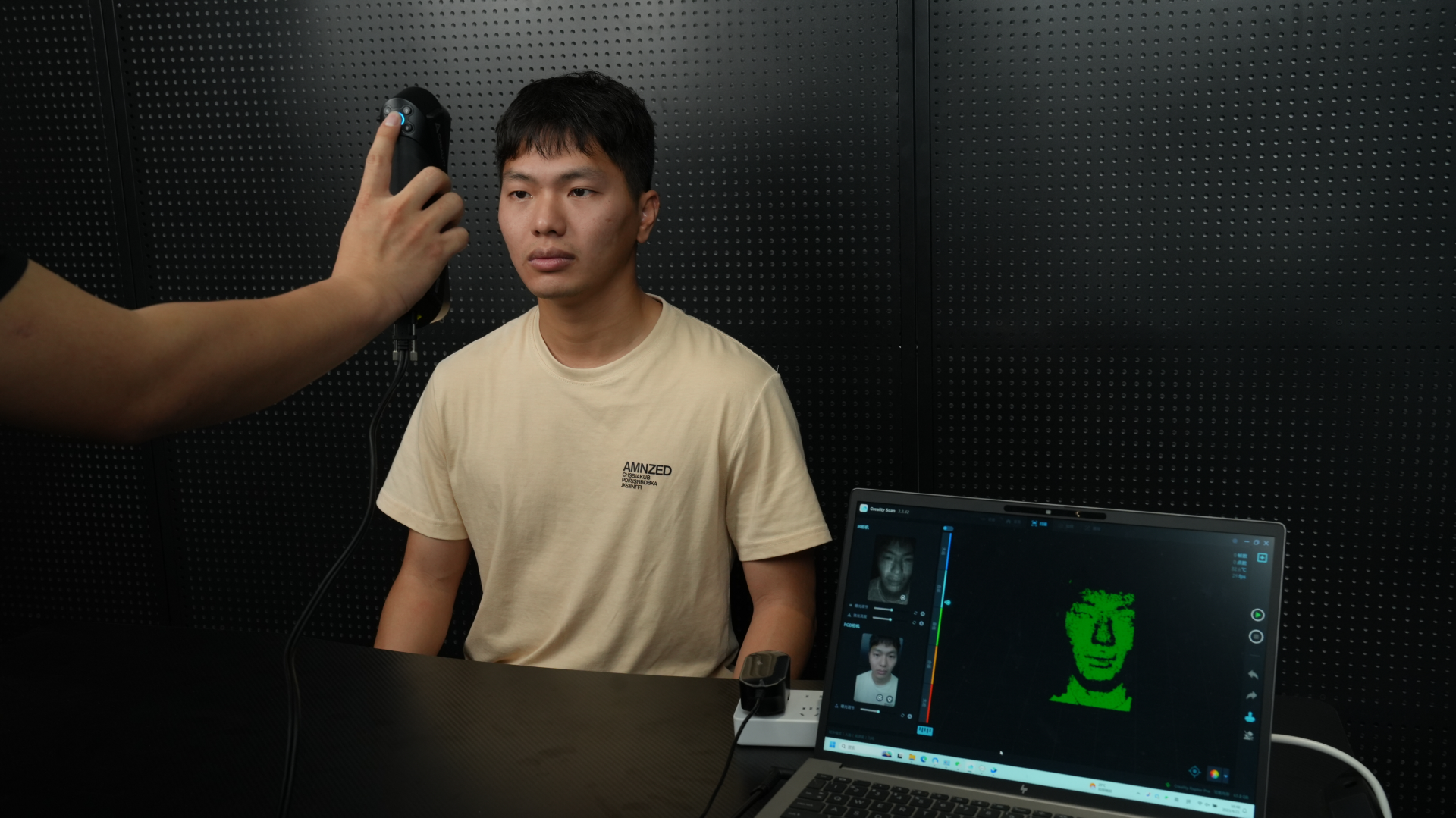
Face scans require subject comfort, steady motion, and immediate review. Set Face mode with geometry tracking, preview the point cloud, and tune exposure before starting.
- Connect Raptor Pro and open CrealityScan.
- Select Face mode and Geometry tracking.
- Preview from a moderate distance.
- Collect front, left, right, upper, and lower face data.
- End the scan and process with appropriate optimization settings.
- Mesh and apply color mapping when texture is required.
Classroom Safety
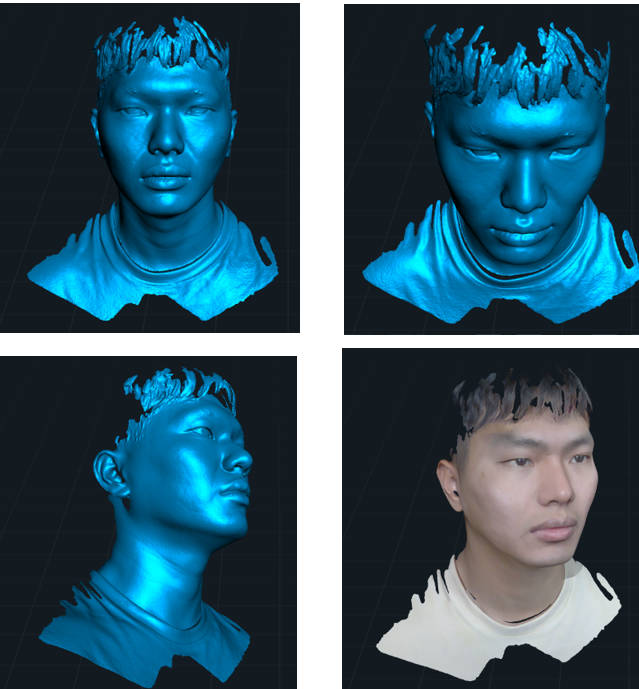
- Explain the route before scanning.
- Ask the subject to hold a neutral expression.
- Stop if the subject is uncomfortable.
- Review the scan before the subject leaves so missed areas can be corrected.