Model Orientation, Support, Infill, and other general slicing settings
Model Orientation
When slicing models for your 3D printer, the orientation is crucial for achieving optimal print quality and minimizing the need for support material. Proper orientation can help reduce overhangs—areas that extend outward without underlying supporting layers—since large overhangs require support structures to print correctly. Orienting the model to minimize these overhangs not only reduces the amount of support needed but also saves time and material.
Sometimes, it can even make a difference between some post-processing required, and no post-processing. Surfaces in direct contact with support material can have rougher finishes, so positioning the model to avoid supports on visible or functional surfaces improves the final appearance. Furthermore, the orientation can influence the part’s strength by aligning layers in a way that best resists the specific stresses the part will encounter in use.
We will use this Plane model from MakerWorld.
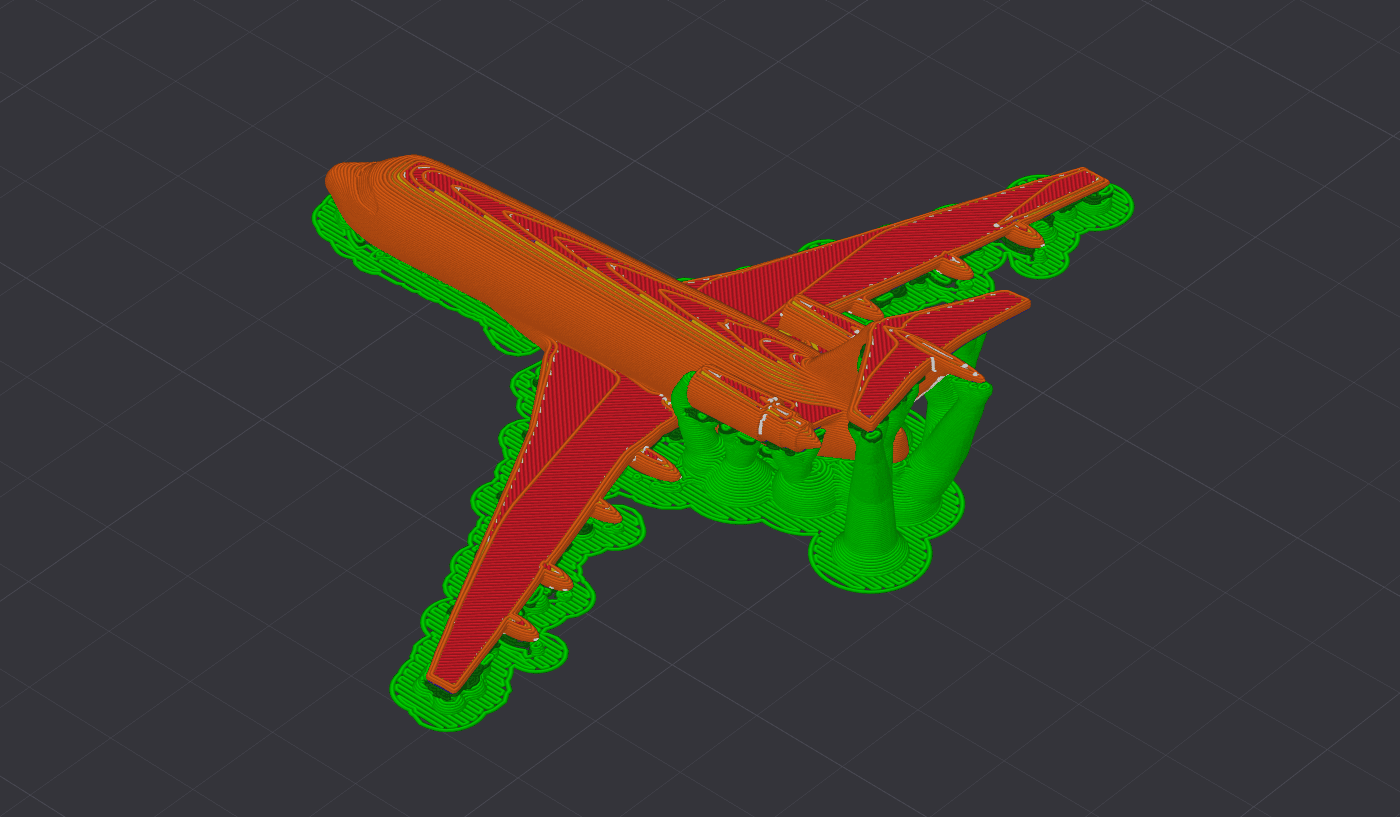
In the image below, the model is oriented in a way that generates inconsistent print quality, with layer lines and increased support requirements under the model. Due to the model orientation, support material could scar the model and make removal harder.
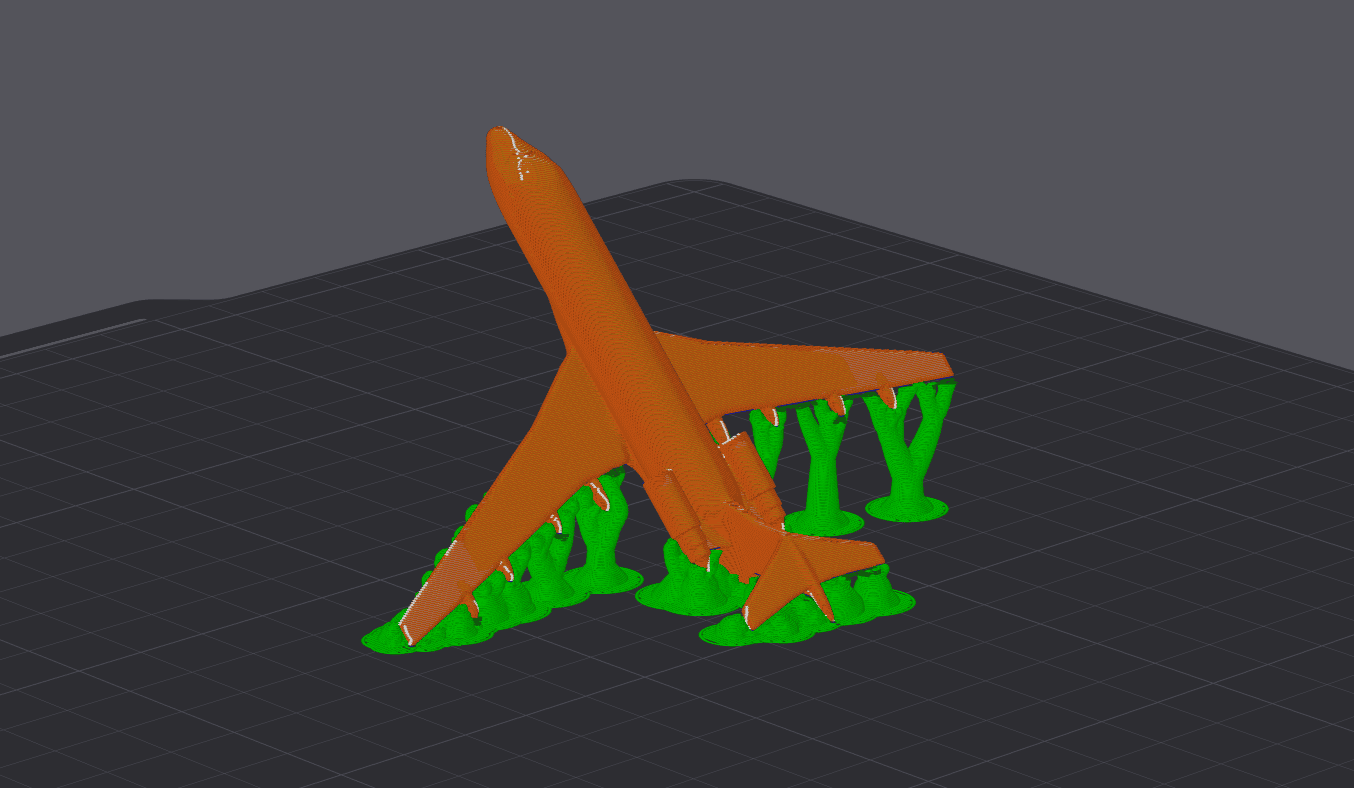
When the model is correctly oriented, the support material is minimized and the print quality increases significantly. Support is applied on a small section of the model, making it easier to remove, and the resolution of the print will be much higher.
Using Support Material
In some situations, it is not possible to orient the model in such a way that doesn’t require or minimize the support usage. When that’s the case, it is recommended to enable support generation in Bambu Studio.
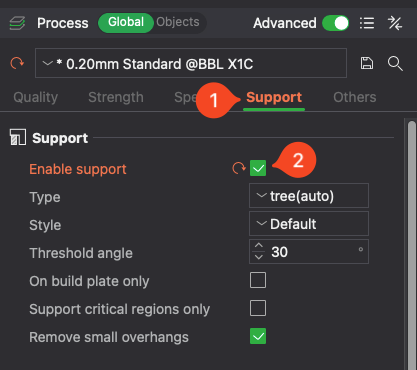
With this feature enabled, Bambu Studio will detect all overhangs of the model and generate support for them.
One of the most useful features for support in Bambu Studio is Support Painting. With this option, you can paint the sections on a model where you wish support to be generated, in this example, highlighted with purple. With Support Painting, you can minimize the filament used for support.
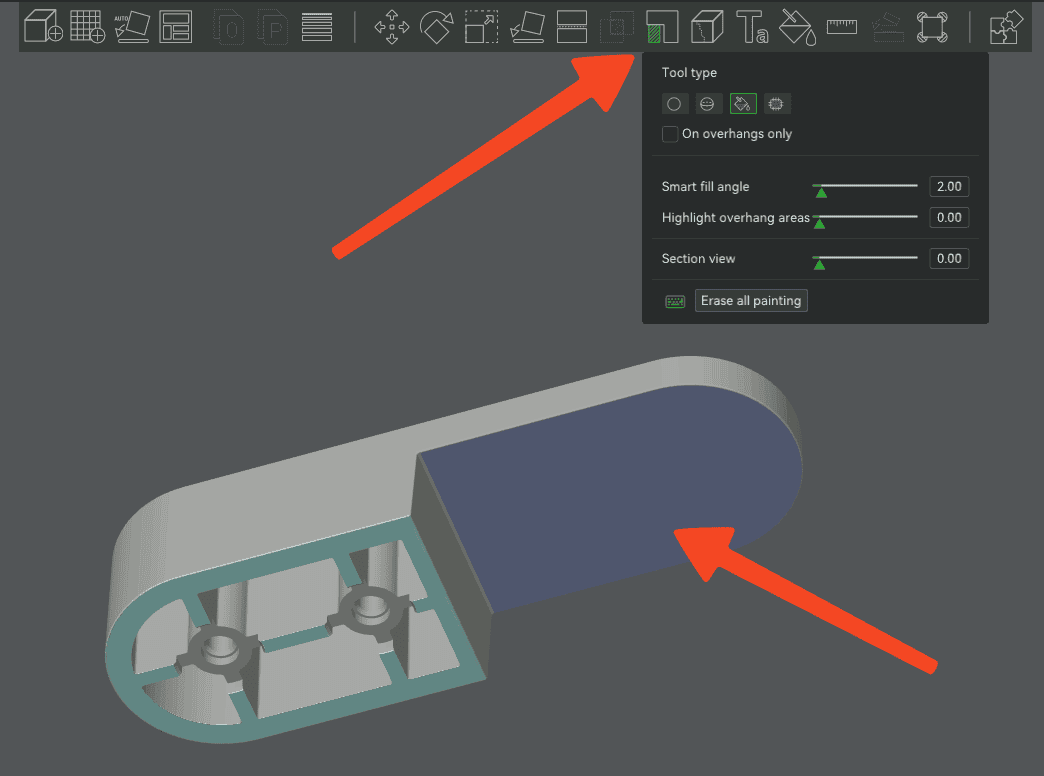
It is recommended to paint support material for sections that would otherwise be printed in mid-air or for overhangs which are greater than 45-50 degrees.
More information about print orientation, supports and adjusting their position, is available in the following Bambu Studio videos:
Wall Loop number
In Bambu Studio, you have access to the Wall Loops option (available under the Strength tab) which refers to the outermost layers of a printed object that forms its outer shell.
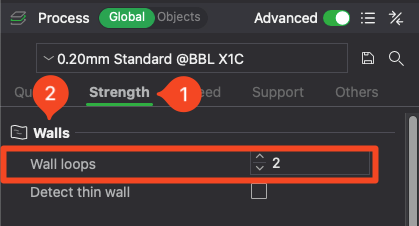
The number of wall loops can be adjusted independently of infill density, allowing you to control how thick the outer walls of a print will be. A higher number of wall lines means more layers of material are stacked around the perimeter of the part, forming a thicker, more robust shell.
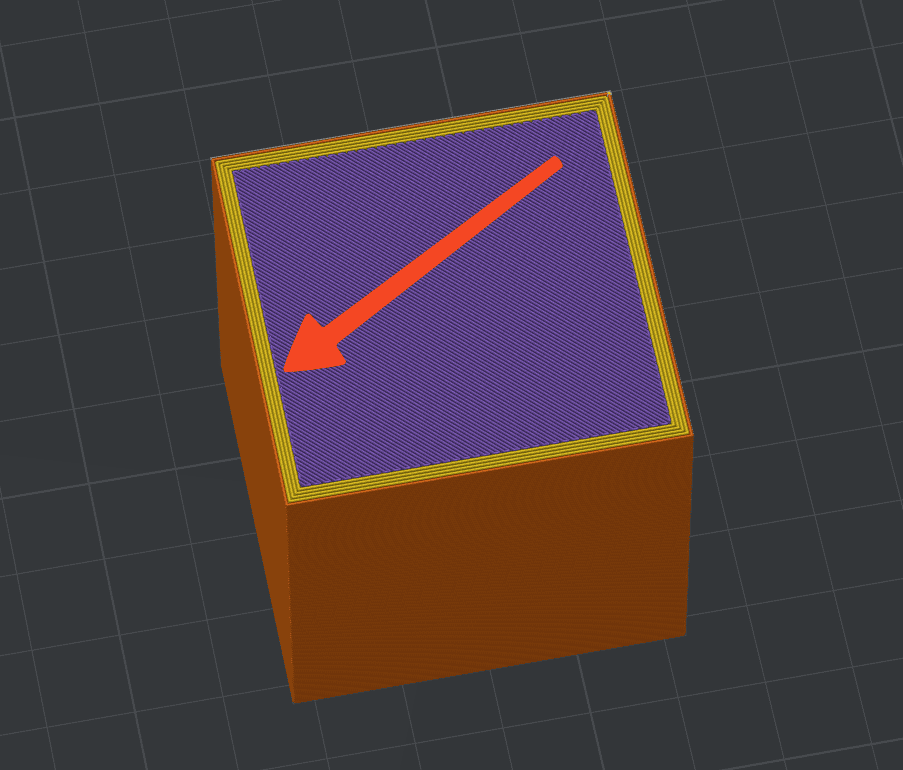
Increasing the number of wall loops can significantly enhance the strength of a 3D-printed part, often more effectively than just increasing the infill density. When a printed part is subjected to stress—such as bending, tension, or compression—the outer walls take on most of that load, as they form a continuous, solid structure. Each additional wall layer improves the part’s ability to absorb and distribute forces, reducing the risk of failure. This distribution effect is beneficial for parts expected to withstand substantial mechanical loads or impacts.
A good “rule of thumb” for general prints that don’t require a lot of strength is to use 2-3 wall loops which add up to around 1.2mm in wall thickness when printed with a 0.4mm nozzle.
Sparse Infill
The SparseInfill option (available under the Strength tab) represents the internal structure that fills the space inside a printed part, providing support and strength without making the part solid.
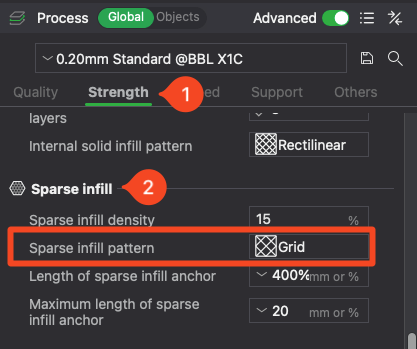
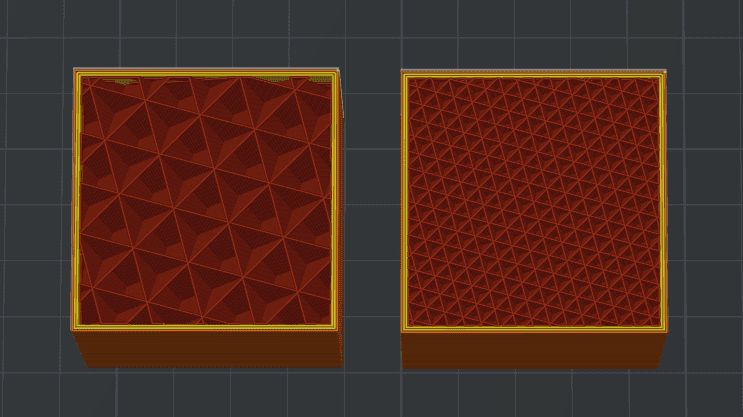
The Infill can be printed in various patterns, which can vary depending on the desired balance between strength, weight, and material use. Common infill patterns include grid (a simple, cross-hatched structure), honeycomb (hexagonal cells resembling a beehive), gyroid (a continuous, wave-like structure), and triangle (triangular cells).
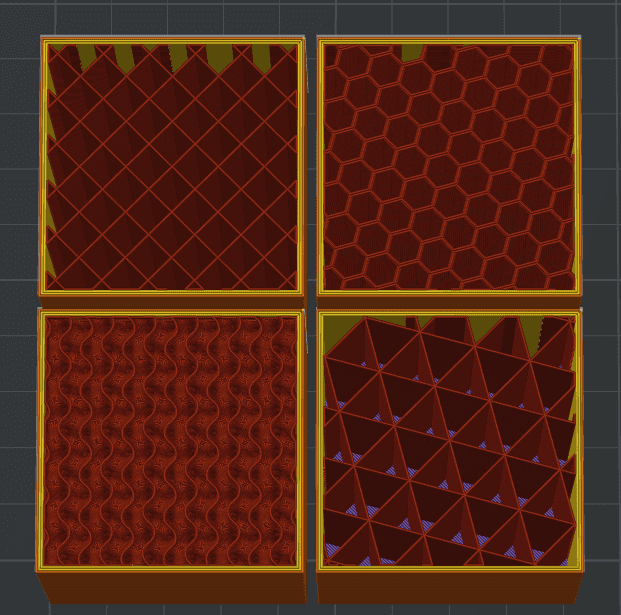
Each pattern has unique properties: for example, honeycomb and gyroid infill provide good strength-to-weight ratios, while grid and triangle infill offer straightforward structural support with increased speed.
Bambu Studio also implemented the Cross Hatch infill which combines grid and gyroid infill for higher print speed while also contributing to the strength of the printed model.
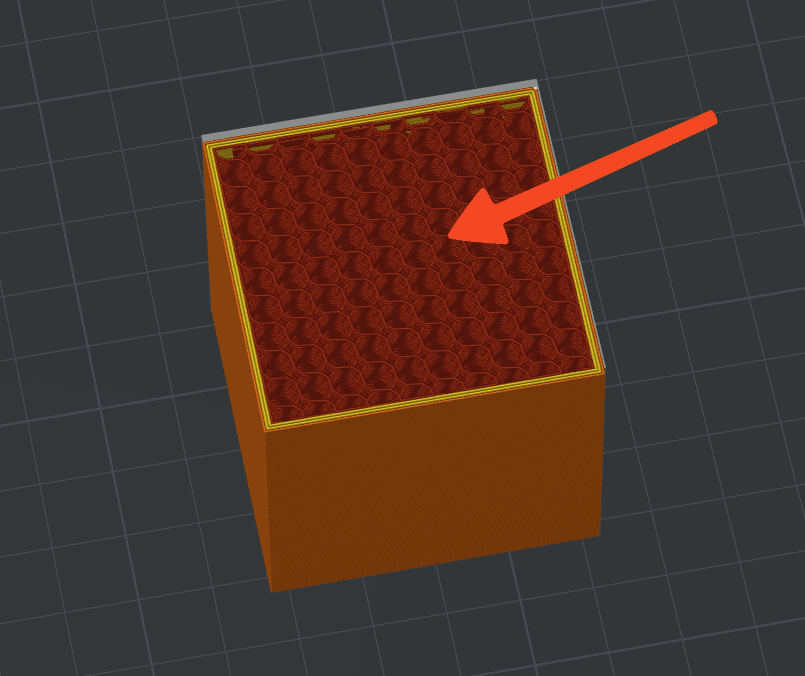
The infill helps reinforce the part by distributing load across the internal volume, which increases the part’s ability to withstand compression, tension, and bending forces. By adjusting infill density and pattern, users can control a part’s rigidity, with higher densities adding more strength at the cost of additional material and print time.
Generally, a 15%-20% infill ratio is recommended for general models that don’t require a lot of strength. Increasing the infill to 35%-45% and adding additional 1-2 extra wall loops can help increase the stiffness of the part.
Top/Bottom Shells
The Top/Bottom Shells (available under the Strength tab) are the solid outer layers that cap the printed part on its top and bottom surfaces.
These shells create a smooth, enclosed surface on the part, adding to its aesthetic finish and structural integrity. The bottom shell provides a strong foundation, ensuring good adhesion to the print bed, while the top shell seals the infill, distributing load more evenly across the surface and preventing collapse under pressure.
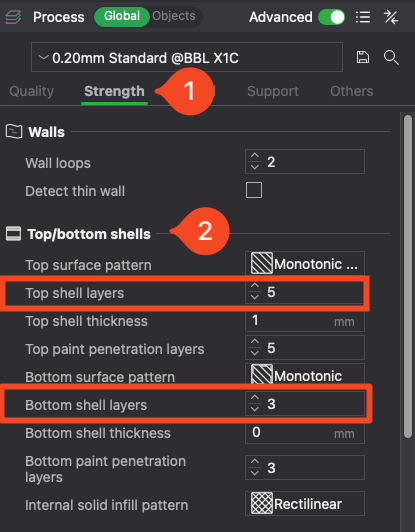
Increasing the number of top and bottom shells can improve the part’s overall durability and resistance to forces that might cause warping or layer separation, while also increasing the quality of the top layer.
When deciding on the number of top and bottom shells, it is recommended to use a close-to or similar thickness as for the wall loops. As an example, if you are printing with 3 wall loops totaling around ~1.2mm, the number of top and bottom layers is recommended to be set at ~6 which totals around ~1.2mm, printed at a 0.2 layer height.
Print seam
A print seam forms because of the way FDM printers build objects layer by layer. During printing, the nozzle moves around the perimeter of each layer, extruding melted filament. When a layer is completed, the printer must move up to the next one and start a new loop.
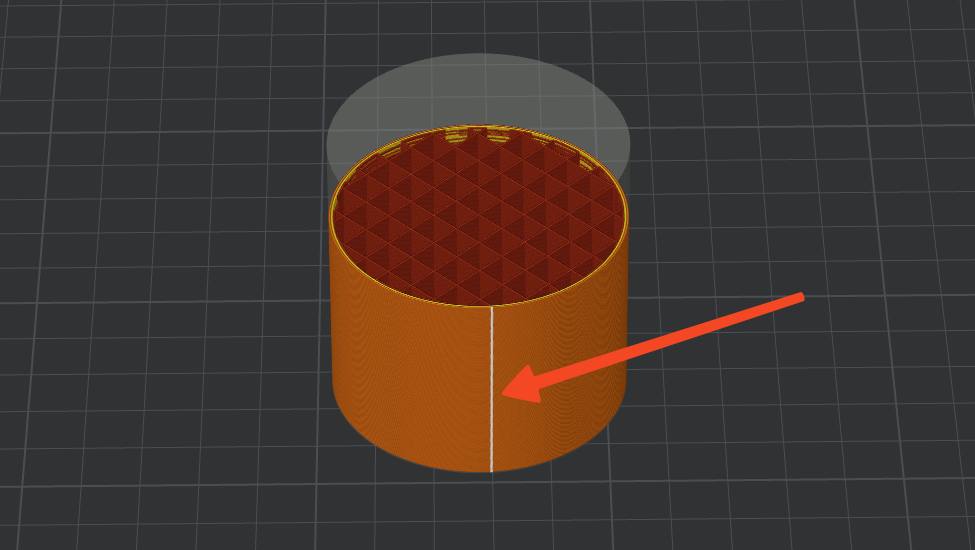
The point where the nozzle starts or stops extruding filament – usually at the start or end of each perimeter – is where a seam can appear.
This seam occurs for several reasons:
Start/End of Extrusion: The nozzle has to begin and end extrusion somewhere on each layer. This can leave a small gap.
Z-seam Alignment: If the printer follows the same starting point for every layer (aligned seam), the seam will appear as a vertical line. If the seam point is randomized, it spreads across the surface but may create a rough texture.
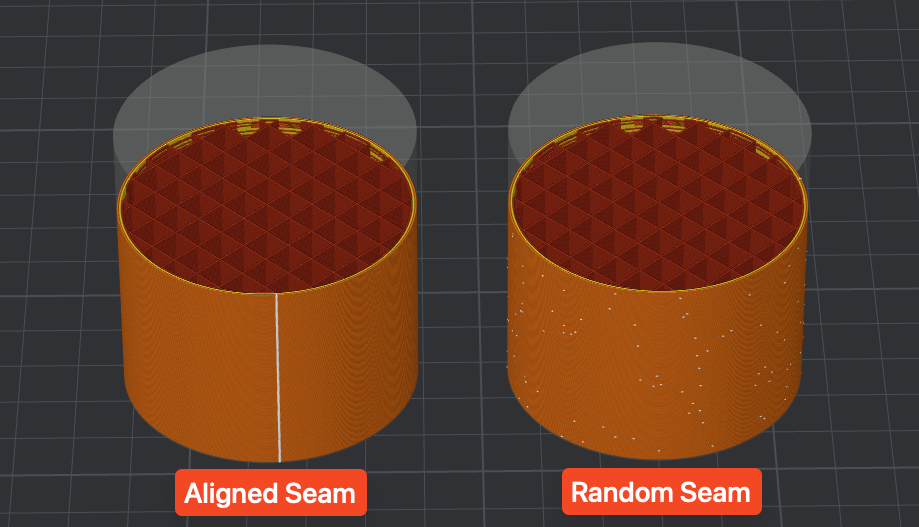
Bambu Studio lets you control seam behavior by offering options like:
Nearest (to reduce travel time)
Aligned (to stack seams in one line, usually oriented on a sharp edge)
Back (always at the back of the model)
Random (to hide it by distributing the seam)
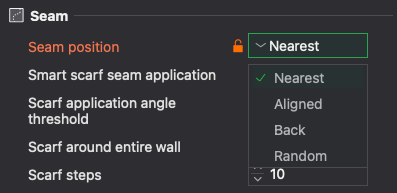
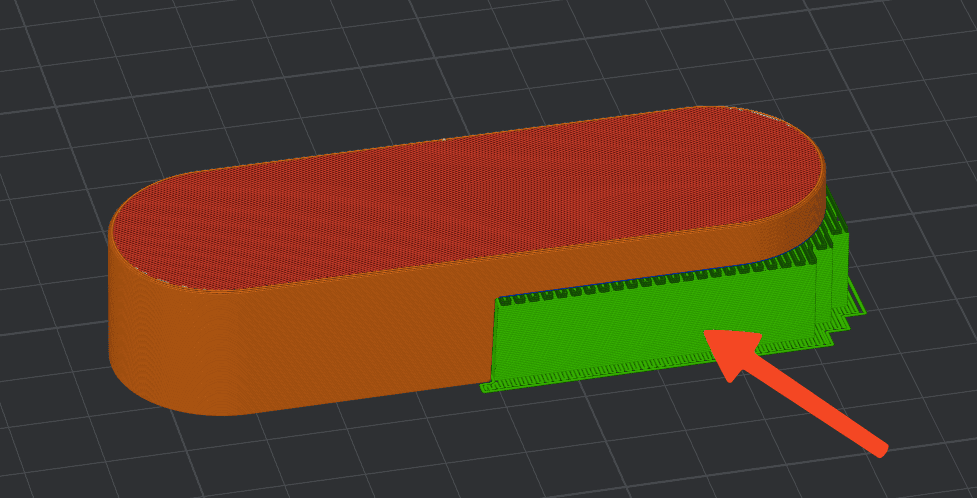
Seams are a normal part of FDM printing, but careful settings and tuning can make them nearly invisible. Usually, the Aligned option will try to smartly hide the seam in less visible sections of the model, but on round objects like the one shown above, it will not be possible to completely hide it.
Ironing
In 3D printing, ironing is a slicer feature used to improve the top surface finish of a print by making it smoother and glossier. It works by performing an extra pass over the topmost layer after it has been printed.
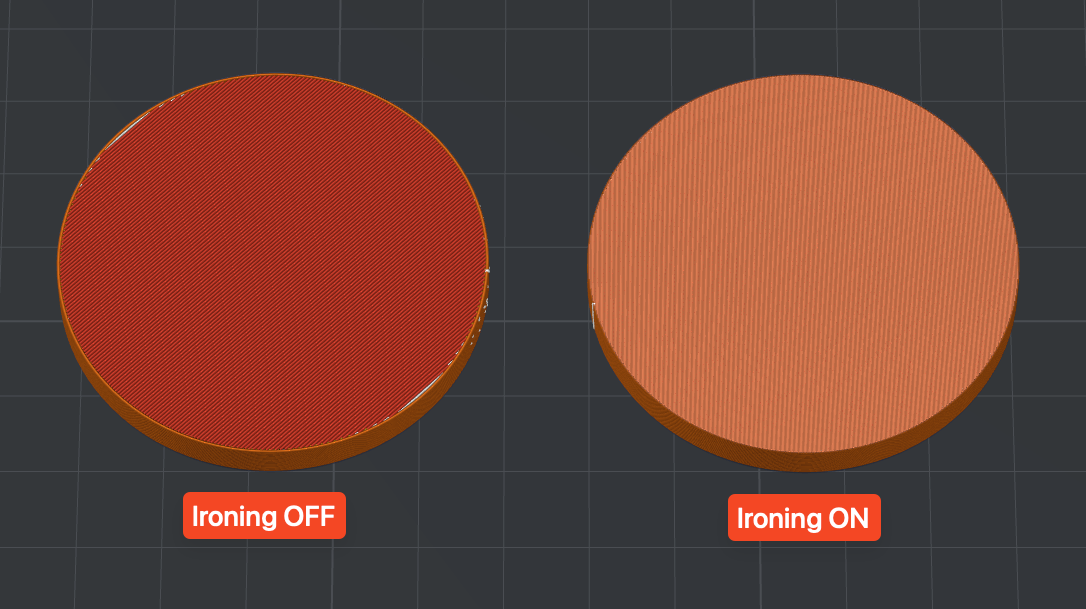
Here’s how it works in more detail:
After the final solid layer (usually the top layer), the printer’s nozzle moves across the already printed surface without extruding much or any filament.
During this pass, the nozzle lightly presses down and may extrude a very small amount of filament, filling in small gaps or uneven areas left by the previous layer.
This process melts and flattens the top surface, smoothing out the individual extrusion lines and reducing the visibility of layer patterns or texture.
Ironing usually happens in a back-and-forth motion, almost like how a clothes iron works, hence the name.
You can control ironing settings in Bambu Studio, from the Quality Tab.
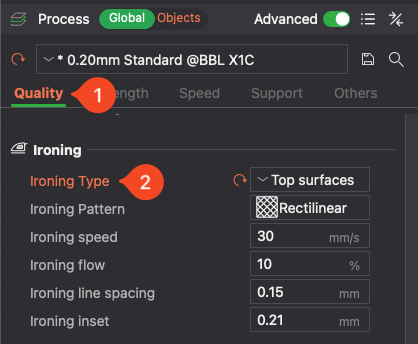
The default settings should work great, but fine tuning can further improve the results.
Ironing produces a shiny, flat top surface and is great for cosmetic parts or functional surfaces needing smooth contact, but it also increases print time and may not work well on some filaments (like flexible or sticky ones)
Overall, ironing is a simple but powerful technique for improving surface quality in FDM prints.