Orca Slicer First-Time Setup Guide
This guide is to set up Orca Slicer on your computer so you can use the Bambu X1C 3D printer at Spark Lab.
1. Download Orca Slicer
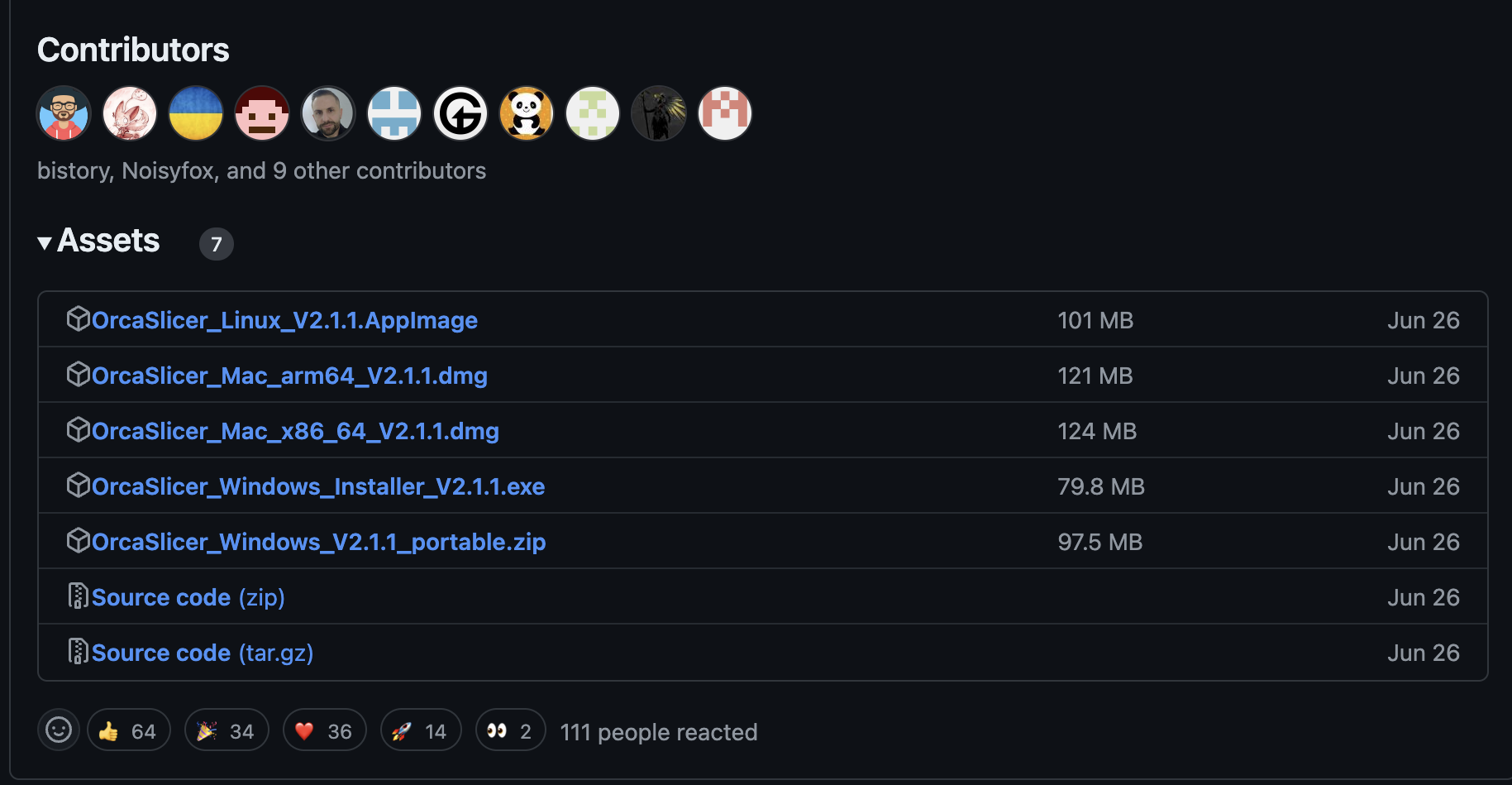
Visit the Orca Slicer releases page and install a stable release that matches your operating system. You may have to scroll down to the “Assets” section to find the download links.
2. Install Bambu Network Plug-in
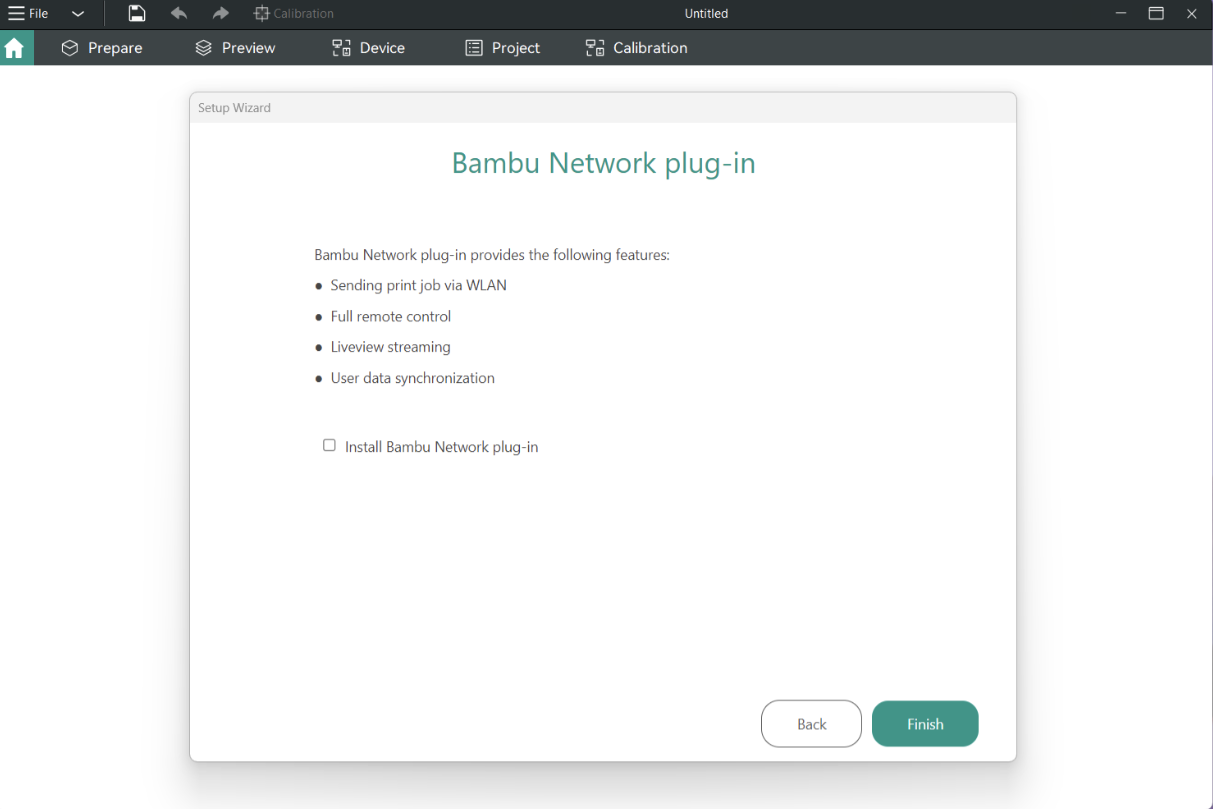
The first time you open Orca Slicer you will be prompted to install the Bambu Network plug-in. Check the box and install it. This may pop-up before you log in or after.
The Bambu Network plug-in provides the following features:
- Sending print job via WLAN
- Full remote control
- Liveview streaming
- User data synchronization
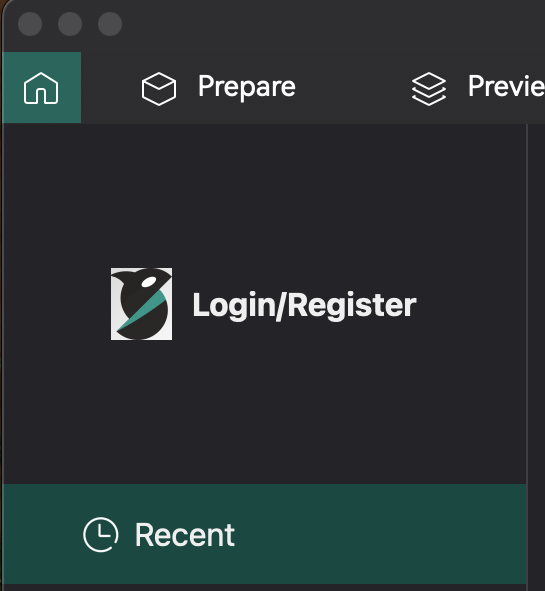
3. Click Login/Register
This button is on the home page on the top navigation bar.
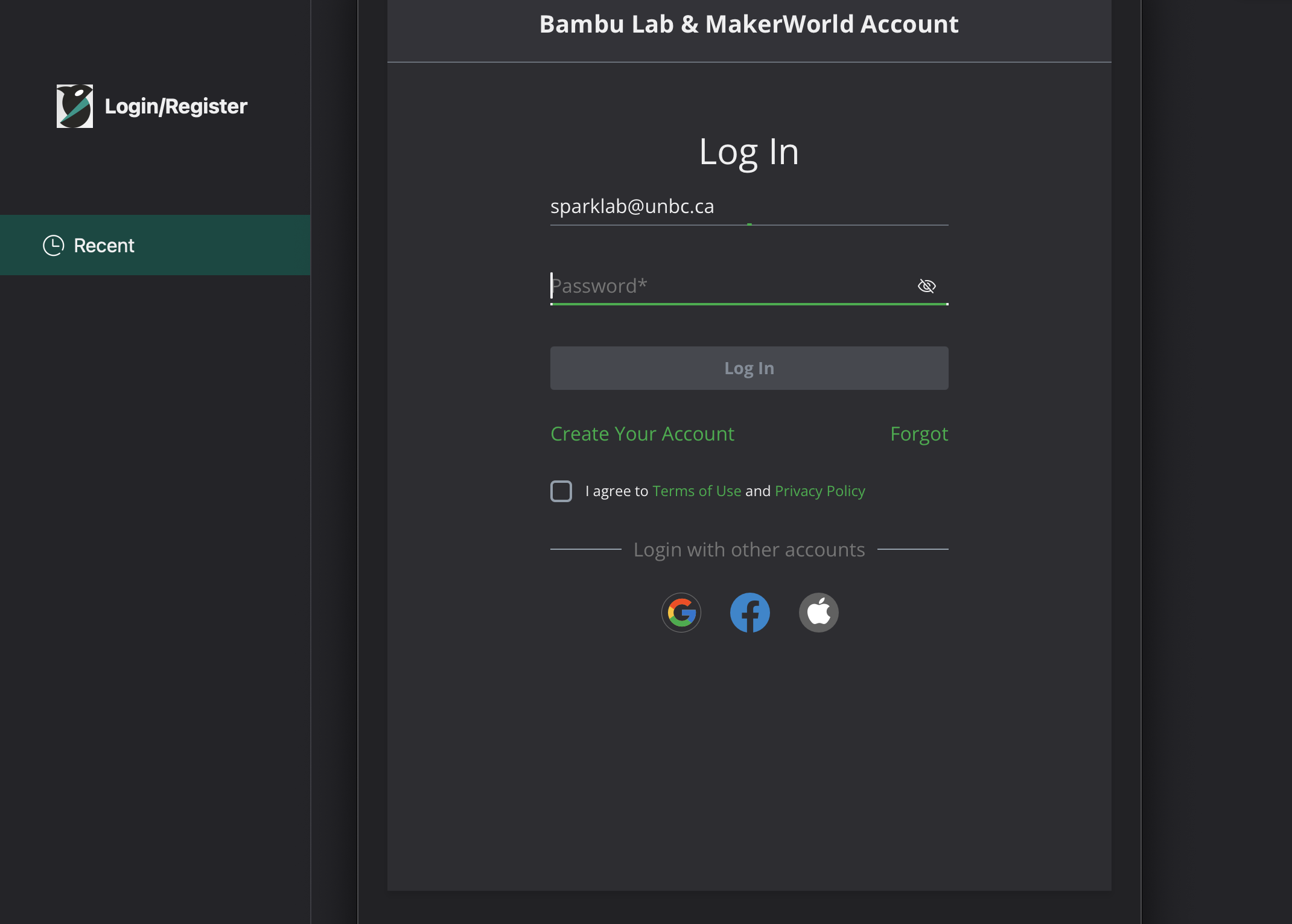
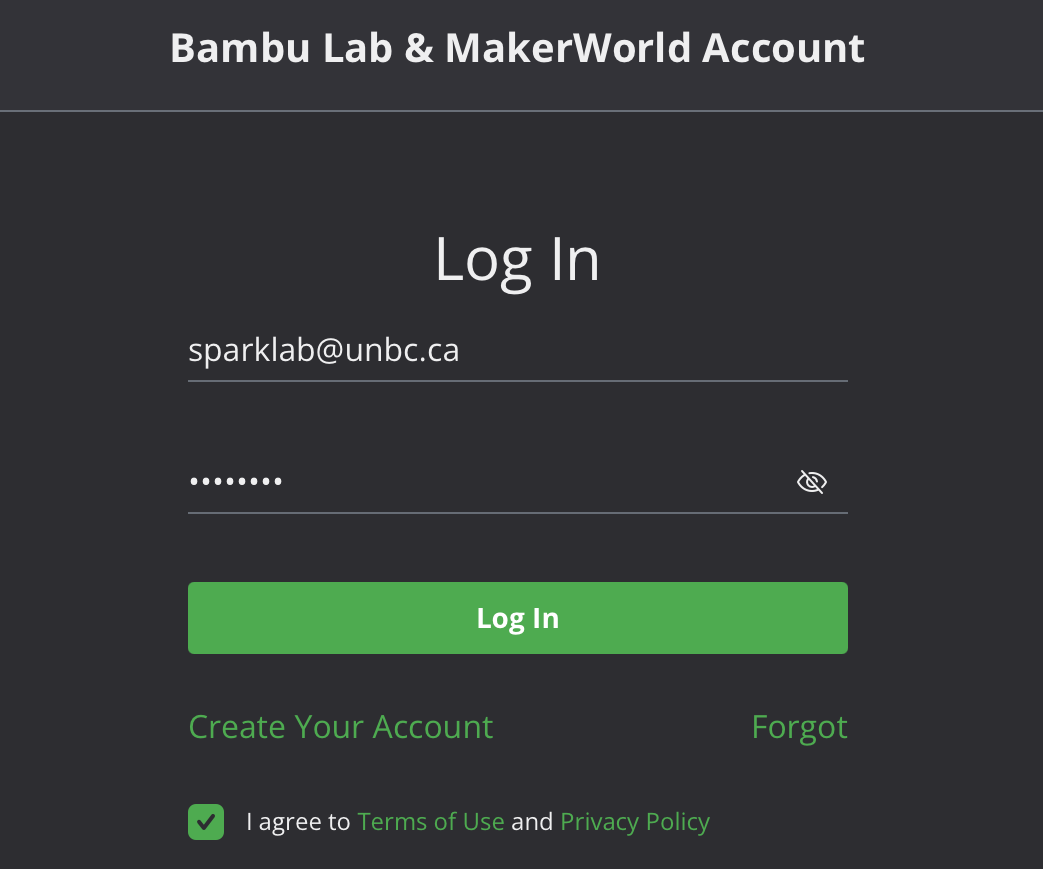
4. Log In
Email Address: sparklab@unbc.ca
Password: Please ask a Spark Lab team member
5. Synchronize Personal Data from Bambu Cloud
When prompted to synchronize your personal data from Bambu Cloud, click Yes. This will sync your process presets, filament presets, and printer presets.