Scan Bridge and Wireless Raptor Pro Workflows
Part 8 / 8
When Wireless Helps
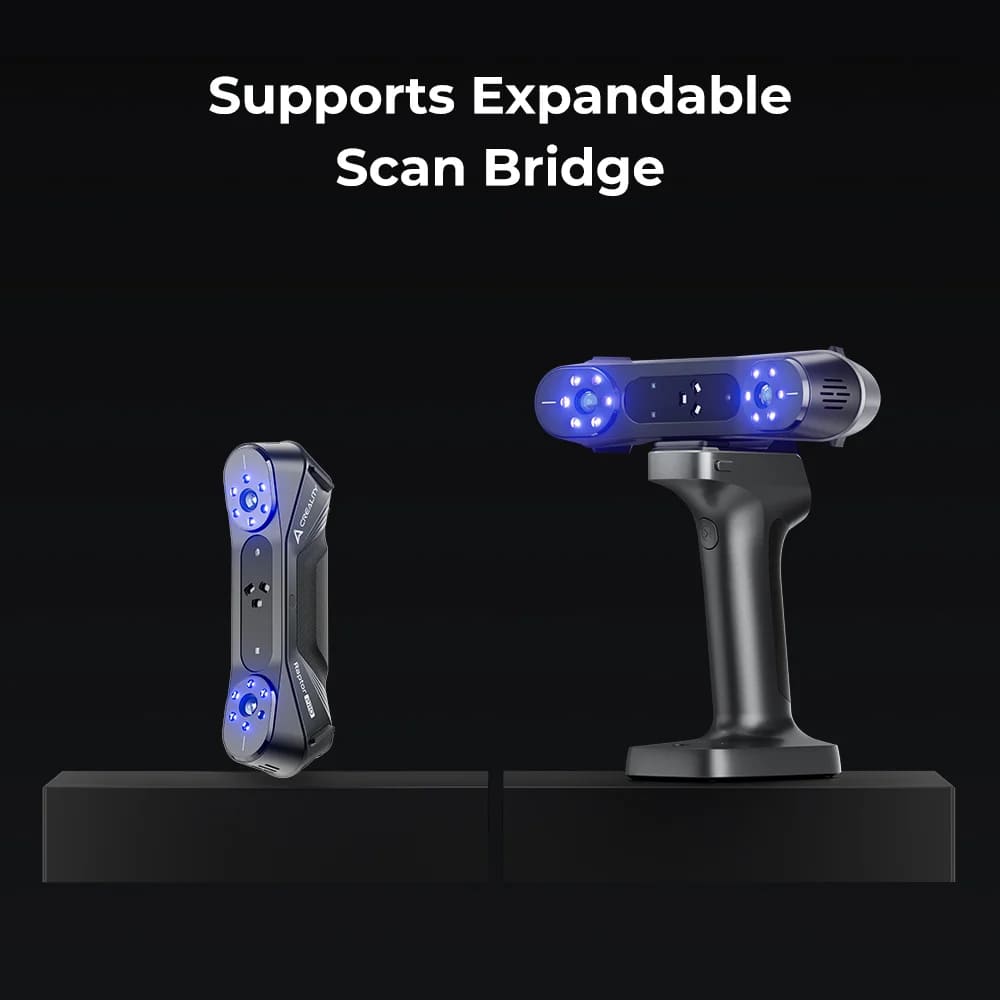
Raptor Pro supports wireless workflows and an expandable Scan Bridge accessory. Use wireless scanning when cable handling would interfere with motion around large targets or vehicles, but keep the same preview, exposure, and tracking checks.
- Plan battery, Wi-Fi, and file-transfer needs before starting class.
- Keep the scanner path smooth; wireless does not replace overlap or marker discipline.
- Use Scan Bridge workflows for larger subjects where cable drag would interrupt the scan.
- After capture, confirm the project transfers cleanly before deleting local data.
Classroom Rule
Teach wired scanning first. Move to Scan Bridge only after students understand mode selection, exposure, marker recognition, and recovery from tracking loss.