Thin-Walled Parts with Raptor Pro
Part 7 / 8
Why Thin Parts Need a Plan
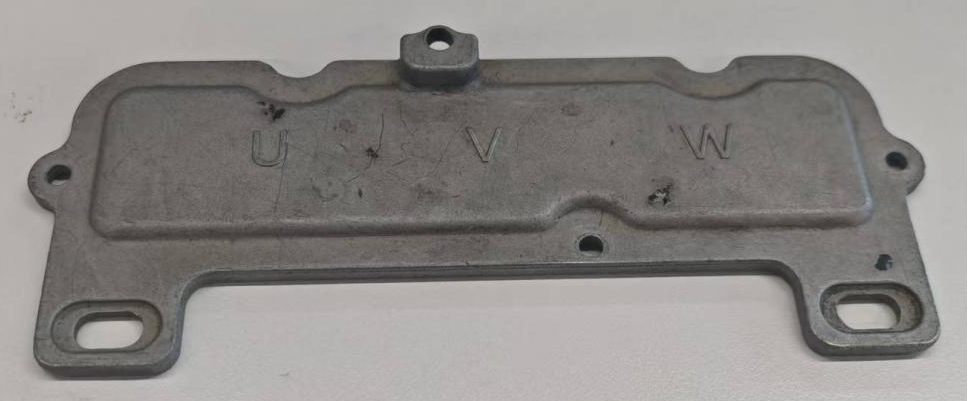
Thin-walled objects have limited shared features between front and back surfaces. Their side walls may be too narrow for markers, so platform markers and controlled scan sessions become the alignment strategy.
Single-Scan Flip Method
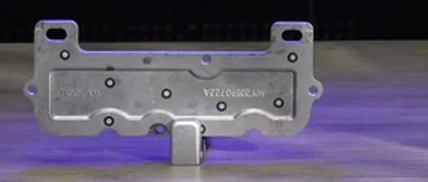
- Attach several markers to both visible broad faces.
- Stand the part on a marker-covered platform or turntable.
- Scan the first posture and capture the platform reference.
- Pause, delete extra cloud data, and change or disrupt the platform marker pattern.
- Flip the part and resume the scan to capture the hidden side.
- Clean the data, fuse the point cloud, and mesh.
Two-Session Method
If the single-scan workflow is unstable, capture two separate scans, clean each point cloud, batch fuse, manually align by shared markers, then mesh. Expect more cleanup if the edge data is weak.